
Working with Confidential Data
Smartchat can keep confidential documents within Telekom-hosted infrastructure for you. This page walks through a typical example: a controlling team keeps the budget plan for 2027 in a confidential collection and asks questions about it. For the rules behind it, see Confidentiality.
1. Create a confidential collection
Section titled “1. Create a confidential collection”- Open Workspace → Collection and click Create Collection.
- Enter a name and a description.
- Switch on Confidential. Hover over the label to see what it means.
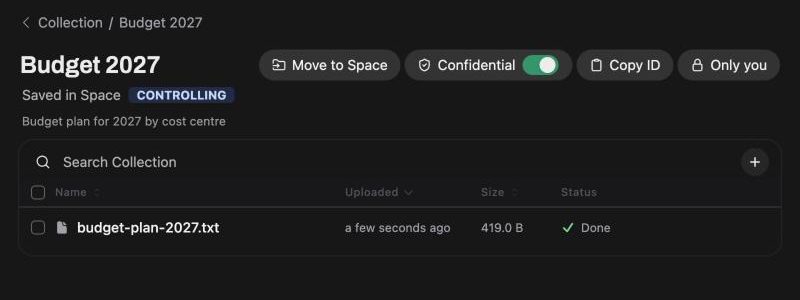
- Click Create Collection, then add your documents with the + button in the collection.
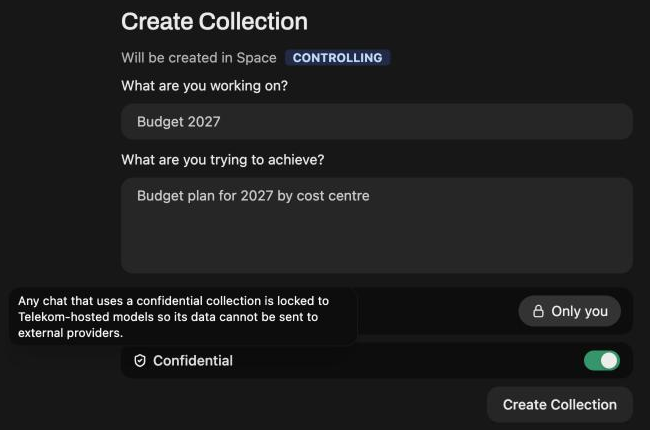
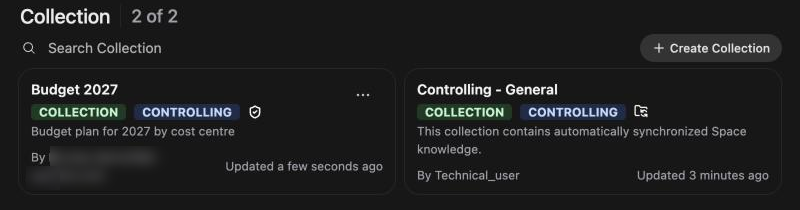
The collection now carries a shield in the collection list.
To make an existing collection confidential, open it and switch on Confidential in its header. The change is saved right away.
2. Use the collection in a chat
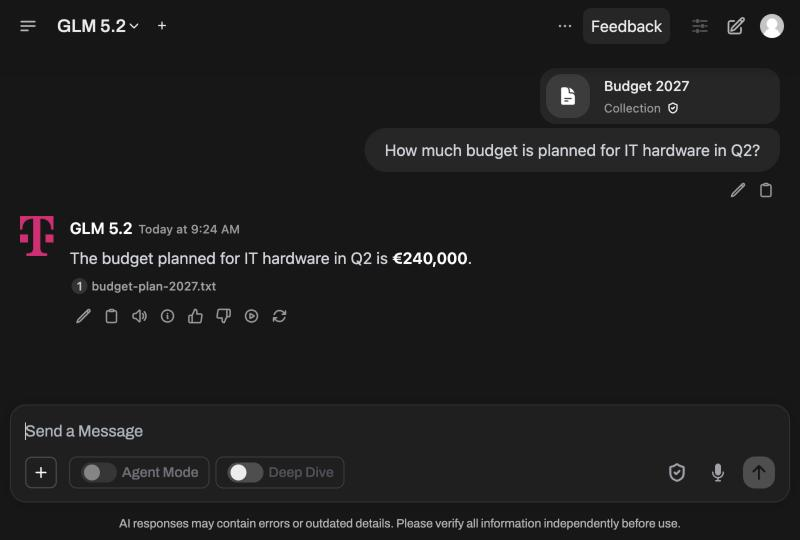
Section titled “2. Use the collection in a chat”In a new chat, type # and pick the collection. Confidential collections show the shield in the list.
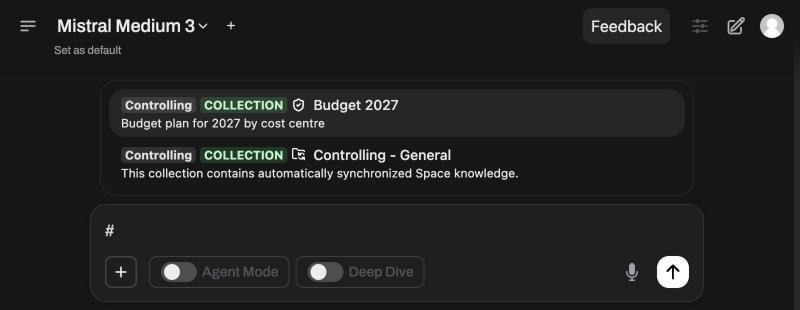
As soon as the collection is attached, the chat is confidential. If an externally hosted model was selected, Smartchat switches to a Telekom-hosted model and tells you so.
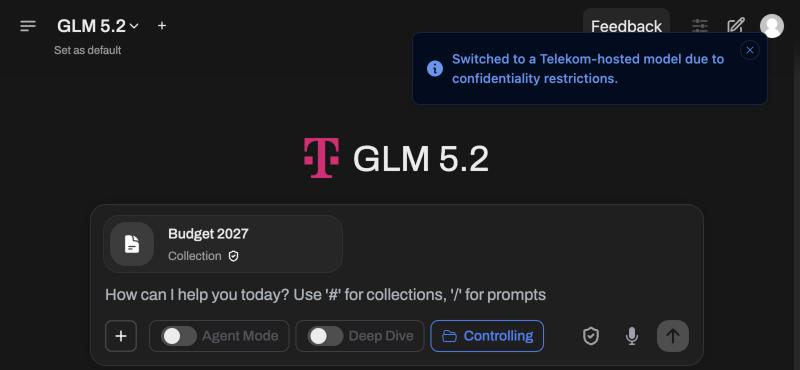
The shield icon next to the microphone shows that you are in a confidential chat.
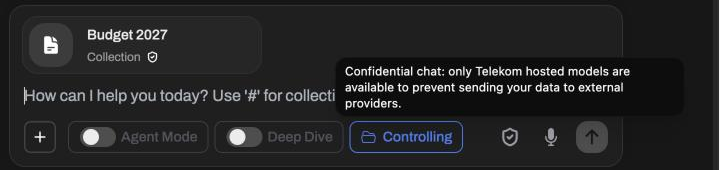
3. What you can use in the chat
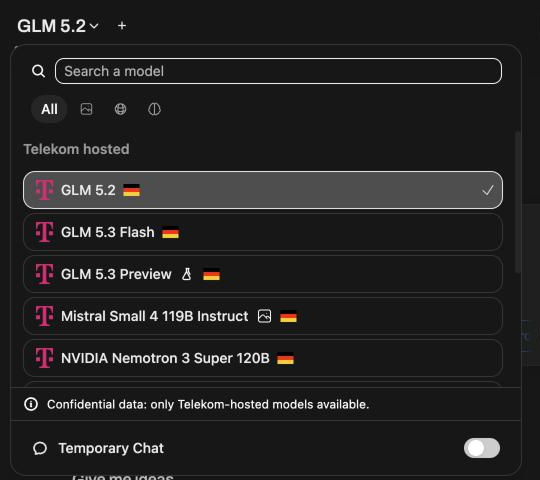
Section titled “3. What you can use in the chat”The model picker only offers models hosted by T-Systems. Externally hosted models are hidden.
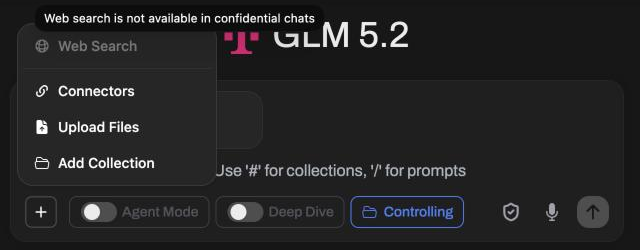
Web search is greyed out in the + menu, because it would send parts of the conversation to an external search provider. Tools are not offered either.
Ask your question as usual. The answer is generated by a Telekom-hosted model and cites the documents from your collection.
4. The chat stays confidential
Section titled “4. The chat stays confidential”A confidential chat keeps its restrictions for its whole life:
- Removing the collection from the chat, or switching off Confidential on the collection later, does not lift them.
- Share, Clone and Copy are not offered in the chat menu, so the content stays within Smartchat. Export is still available.
If you need web search or an externally hosted model for a follow-up question, start a new chat without the confidential data.
Working in a confidential Space
Section titled “Working in a confidential Space”If your Space Owner has marked the whole Space as confidential, every chat in it is confidential from the start, with all the restrictions above. You do not have to mark individual collections.
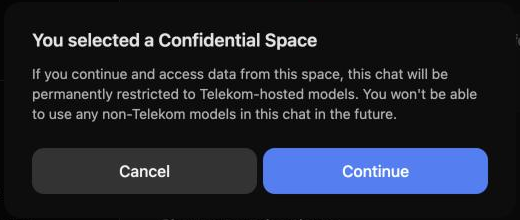
When you open a confidential Space from a chat, Smartchat asks you to confirm first. Continue opens the Space and restricts the current chat to Telekom-hosted models for good; Cancel keeps you where you are.
Assistants with confidential collections
Section titled “Assistants with confidential collections”An assistant that uses a confidential collection must run on a Telekom-hosted base model:
- When you attach a confidential collection in the assistant editor, the base model list only offers Telekom-hosted models. A previously chosen externally hosted base model is removed, and the editor tells you why.
- An existing assistant whose collection becomes confidential while it runs on an externally hosted model is shown as Unavailable in the model picker until you edit it and pick a Telekom-hosted base model.
Chats with such an assistant are confidential, just as if you had attached the collection yourself.