
Using Connectors
A connector links Smartchat to one of your organisation’s systems through the Model Context Protocol (MCP). Once you have connected it, an agent can read data from that system and use its functions during a chat.
Connectors are made available by your administrator. You cannot add your own; you only decide which of the available ones to connect with your account.
Connecting a connector
Section titled “Connecting a connector”-
Open a chat and switch on Agent Mode. Connectors are only available to agents.
-
Click Connect a tool below the message box. The Connectors dialog lists every connector made available in your Space.
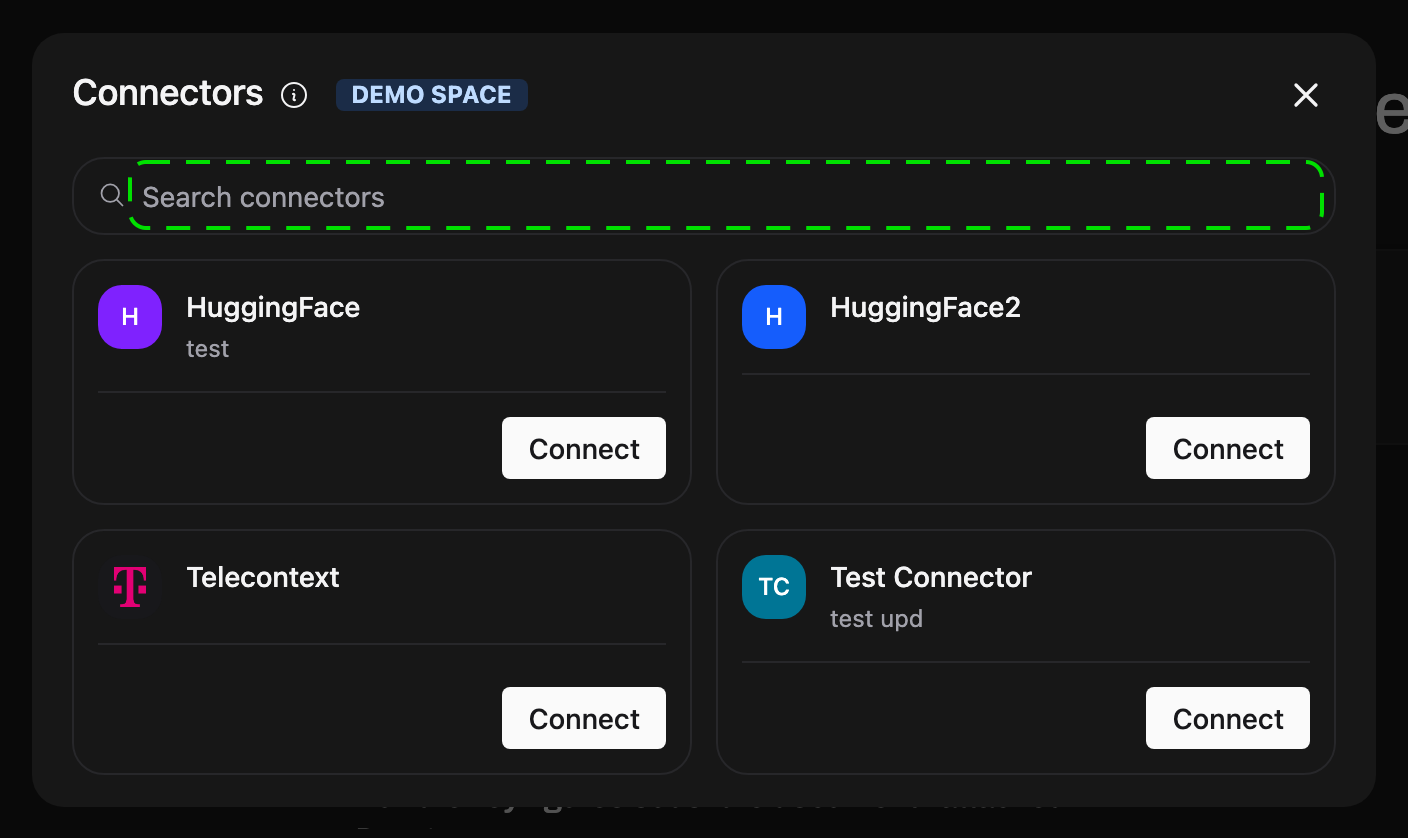
-
Click Connect on the connector you want. Smartchat shows what it will be able to do once you approve:
- read the data you already have access to,
- use the connector’s tools on your behalf during a chat,
- act only while you are signed in. Access ends when you disconnect.
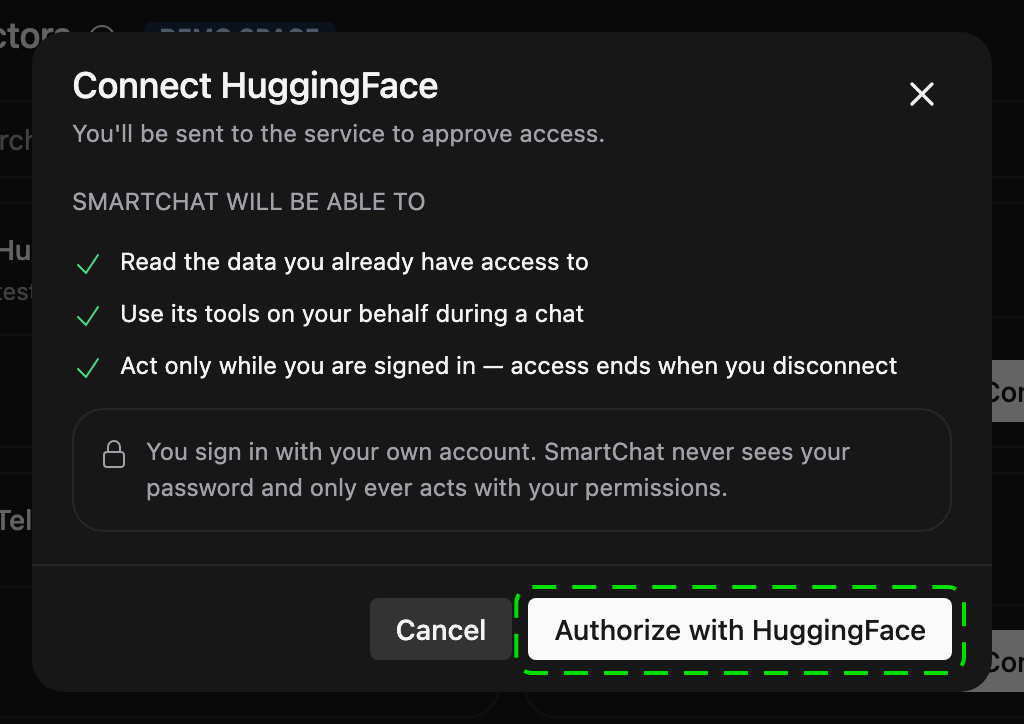
-
Click Authorize with followed by the connector’s name. A new window opens with the sign-in page of that system, for example your Microsoft login.
-
Sign in and approve the permissions the system asks for.
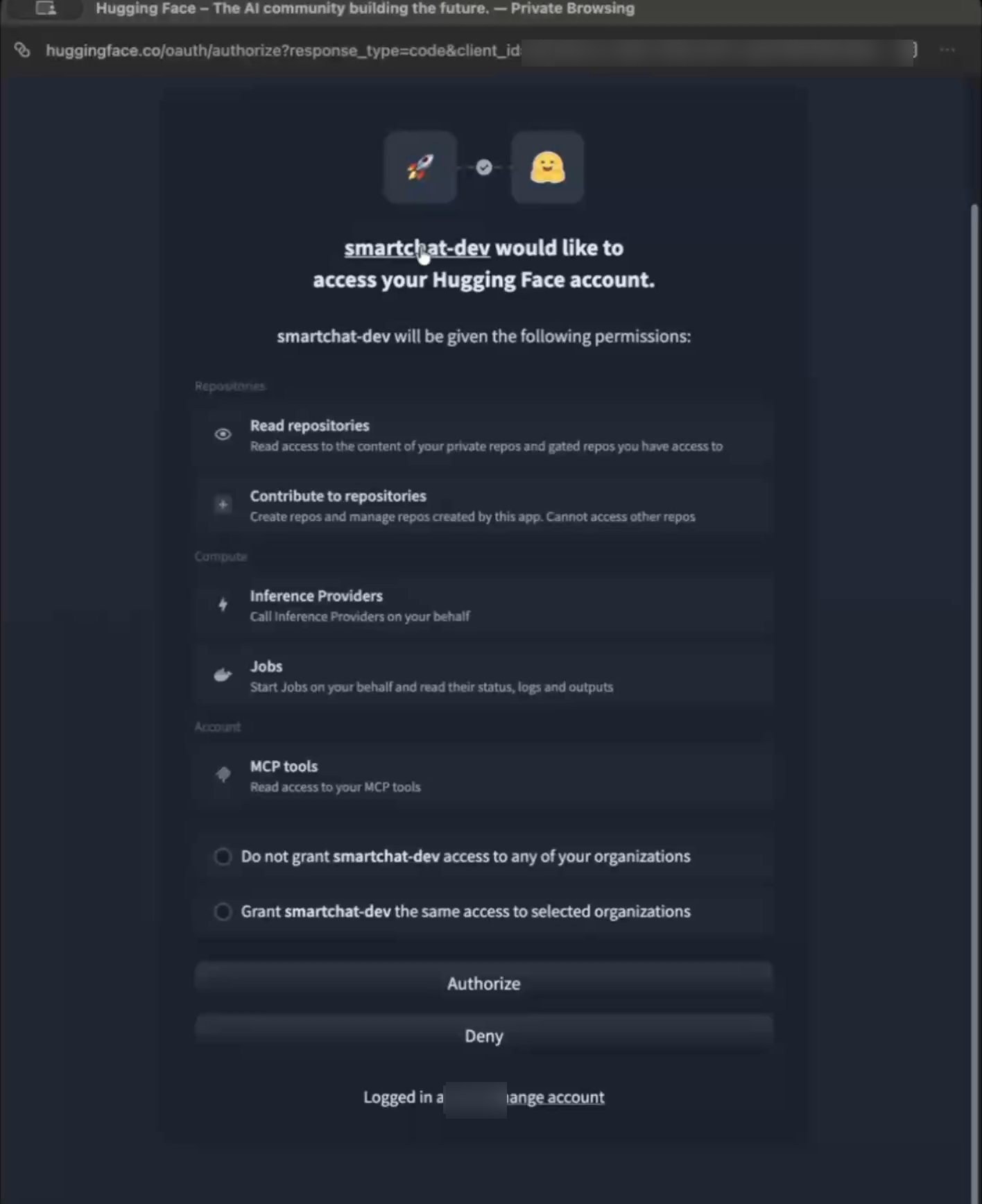
-
Back in Smartchat, the dialog confirms that the connector is ready to use, and the connector shows as Connected.
You sign in on the system’s own page. Smartchat never sees your password.
Using a connector in a chat
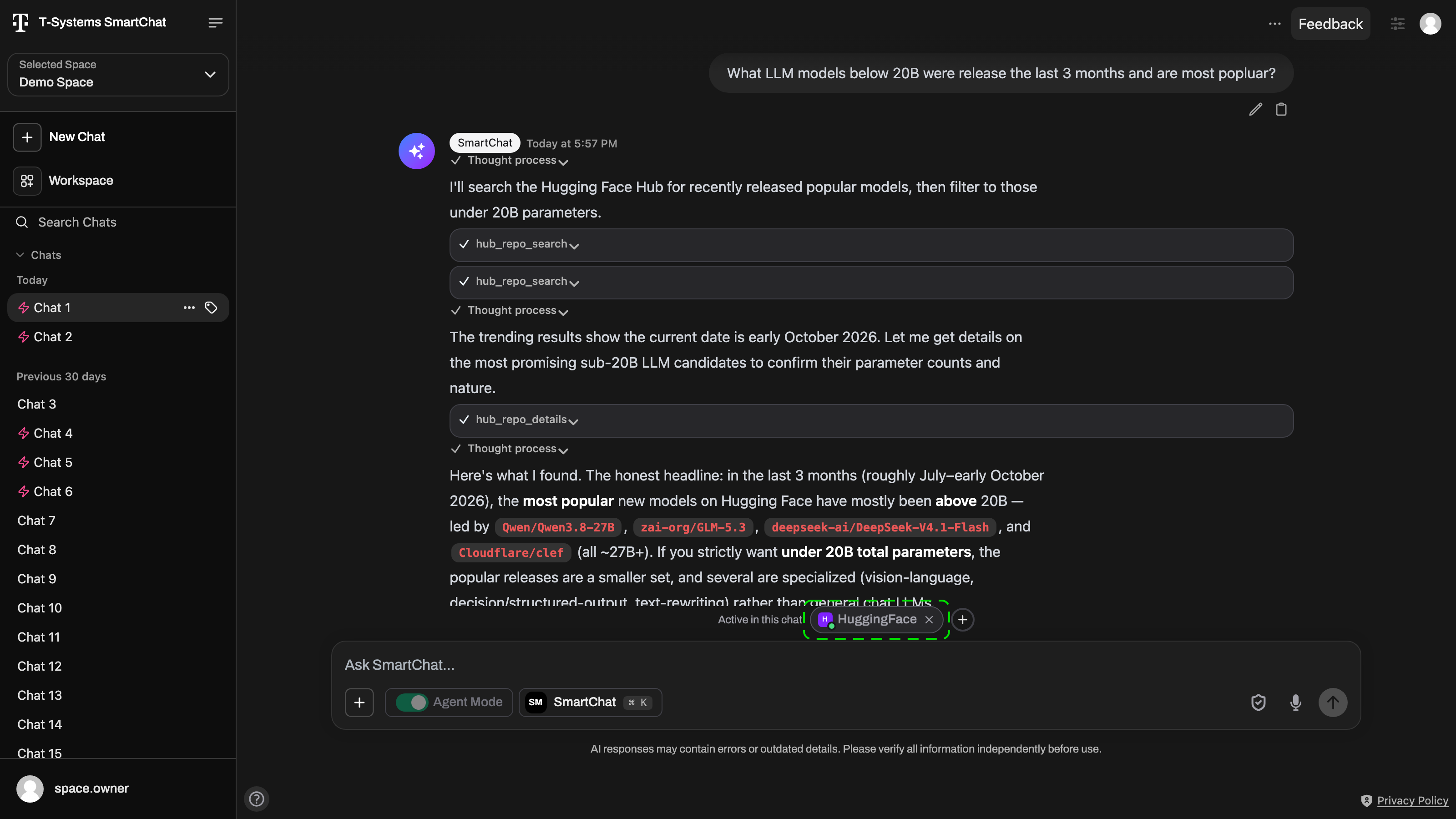
Section titled “Using a connector in a chat”A connected connector is not active in every chat automatically. In the Connectors dialog, switch on Use in this chat for each connector the agent should use. Active connectors are listed under Active in this chat below the message box.
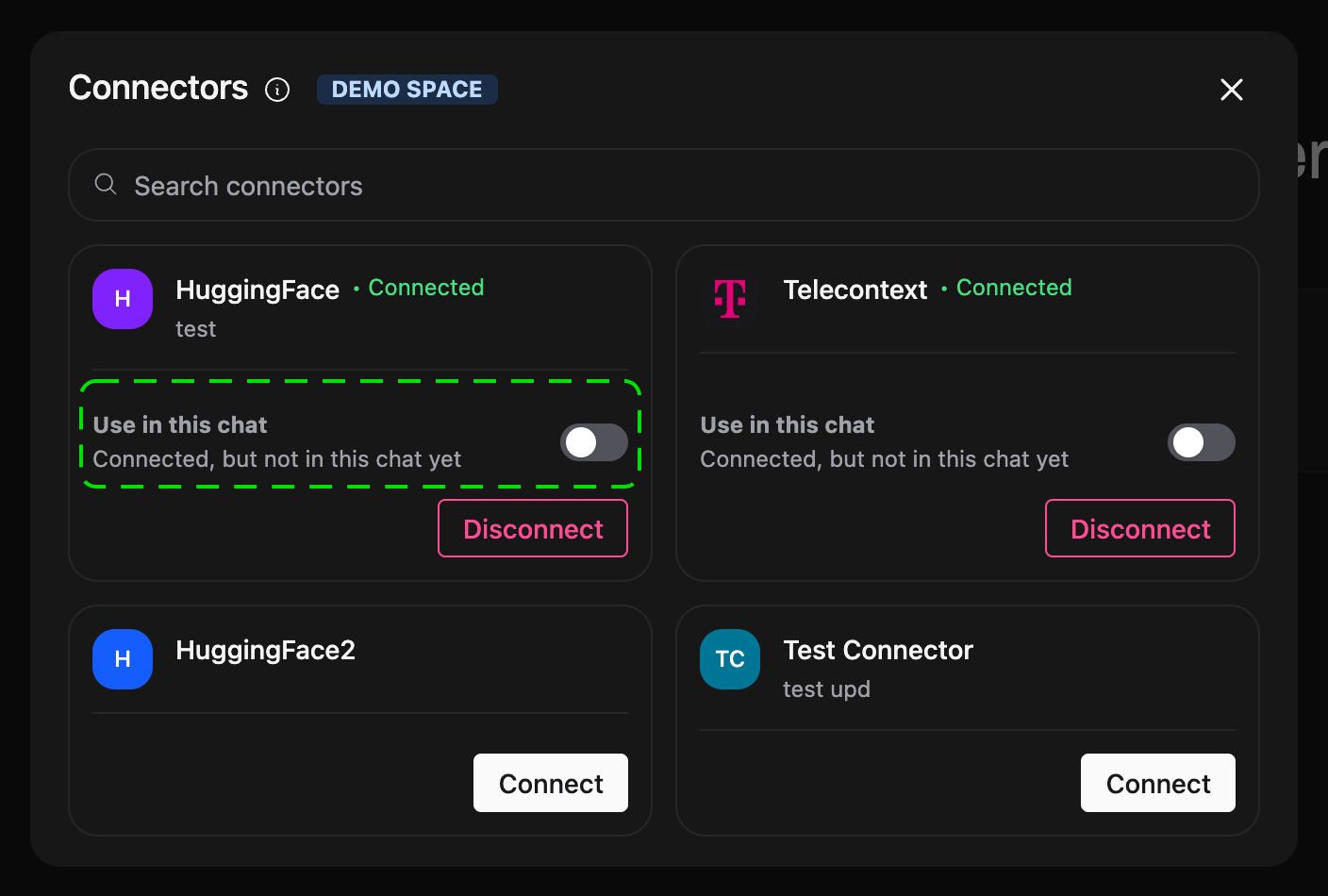
Then ask your question as usual. The agent decides when to call the connector.
Because you connected with your own account, the agent only sees what you can see in that system. Two colleagues using the same connector each work with their own data and permissions.
Disconnecting
Section titled “Disconnecting”Open the Connectors dialog and click Disconnect on the connector. For a few seconds you can still Undo. After that, Smartchat’s access ends; to use the connector again, connect it again.
You may also be asked to connect again when your administrator renews a connector’s registration, revokes and grants back access to you, or your connector’s access token has expired or been revoked.