
Confluence Sync
This guide explains how to set up a connection between your Smartchat Space and a Confluence Data Center instance. Once connected, Smartchat syncs the Confluence pages every night so they become searchable and available as context for your conversations.
Prerequisites
Section titled “Prerequisites”- You need the Space Owner role in the Smartchat Space. See Roles for details.
- A service account token or personal access token (PAT) from the Confluence server you want to sync. Ask your Confluence administrator if you are unsure how to obtain one.
- Data connections must be enabled for your Smartchat environment. If the Data Connections page is missing, ask your Application Owner.
Step 1 — Open Data Connections
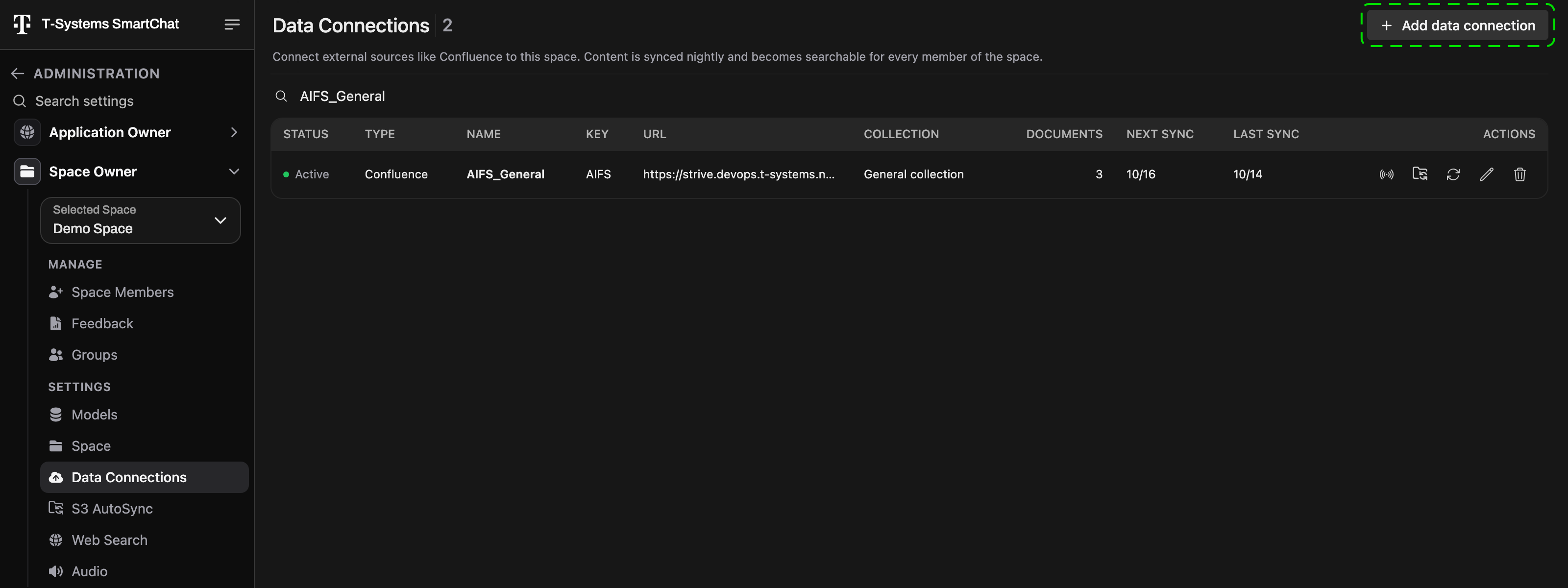
Section titled “Step 1 — Open Data Connections”Click your profile image, choose Administration, and pick the Space you want to configure in Selected Space under Space Owner. Then open Data Connections. You will see a table listing all existing connections of this Space.
Step 2 — Create a new connection
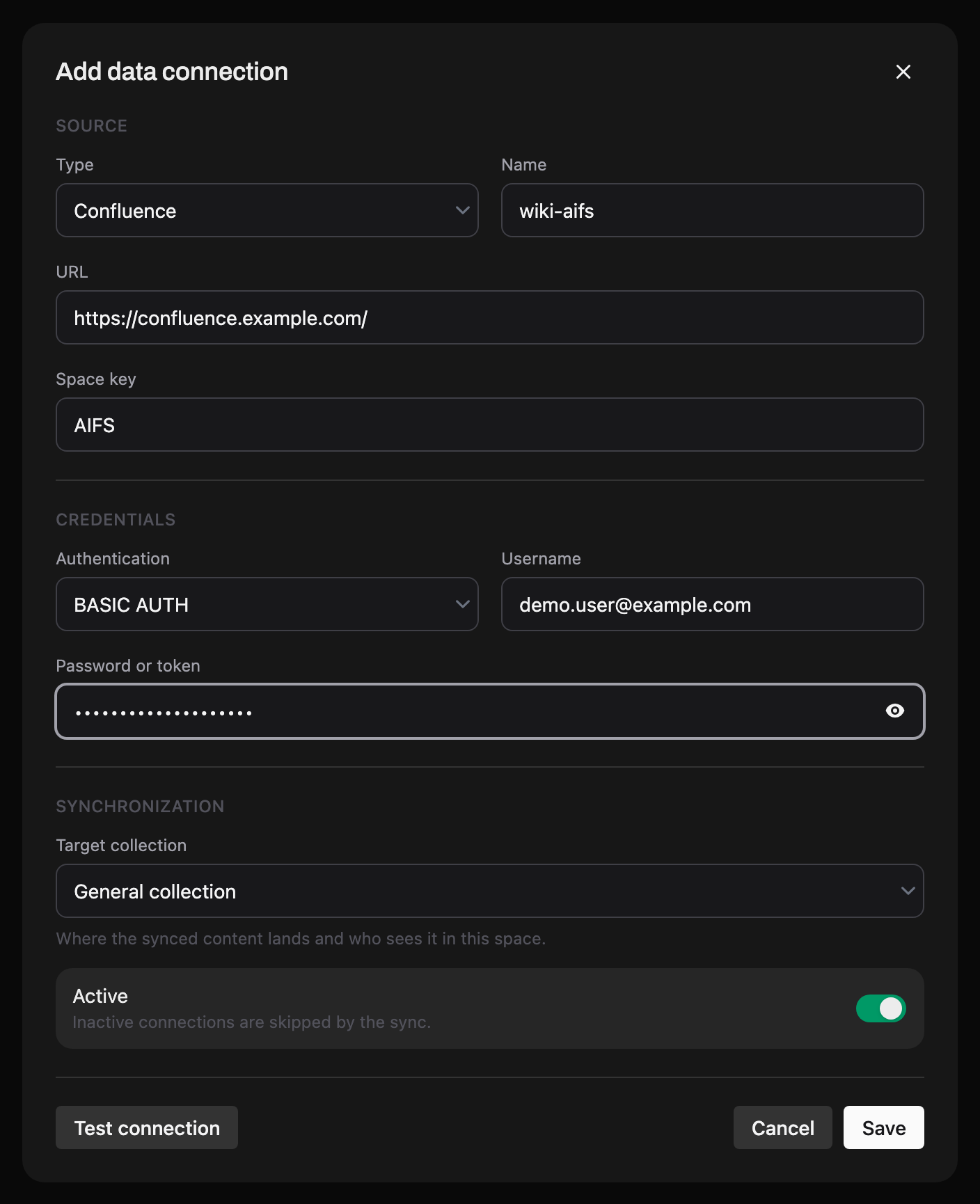
Section titled “Step 2 — Create a new connection”Click Add data connection. The form has three sections:
Source
| Field | Description |
|---|---|
| Type | Select Confluence. |
| Name | A name for your connection: 3 to 64 letters, digits, - or _, no spaces. The name identifies the connection and cannot be changed later. |
| URL | The base URL of your Confluence instance, e.g. https://strive.devops.t-systems.net/confluence/ |
| Space key | The Confluence space key to sync. This is the short prefix that appears in Confluence URLs. For example, if your pages have URLs like https://strive.devops.t-systems.net/confluence/spaces/AIFS/pages/..., the space key is AIFS. |
Credentials
| Field | Description |
|---|---|
| Authentication | BASIC AUTH for a username plus token or password, BEARER TOKEN for a token sent on its own. |
| Username | The username of the service account or personal account (Basic Auth only). |
| Password or token | The corresponding access token or password. |
Synchronization
| Field | Description |
|---|---|
| Target collection | Where the synced pages land. General collection is the Space’s default collection, visible to every member; pick another collection of the Space to sync into it instead. |
| Active | Leave on. Inactive connections keep their settings but are skipped by the nightly sync. |
Step 3 — Test and save
Section titled “Step 3 — Test and save”Click Test connection at the bottom of the form. The result badge next to the button tells you whether Smartchat could reach the Confluence space with these credentials (see Troubleshooting for the possible results).
Click Save. On success the toast Connection saved and nightly sync scheduled. appears and the connection is listed in the table. If the test fails, the connection is still saved but its sync stays paused until you fix the settings and save again.
Step 4 — Verify the connection
Section titled “Step 4 — Verify the connection”
| Column | Meaning |
|---|---|
| Status | Active (green) or Inactive. |
| Documents | Number of pages synced so far. |
| Next sync | When the next nightly run is due, or Paused. |
| Last sync | Date of the last successful run. |
Click the connection’s Name to copy it to the clipboard.
Synchronization schedule
Section titled “Synchronization schedule”- Sync runs automatically every night. The Next sync column shows the exact time.
- The initial sync imports all pages and may take anywhere from a few minutes to several hours, depending on the volume of content.
- Subsequent syncs only process updates and are typically much faster.
Managing connections
Section titled “Managing connections”Each row has a set of action buttons on the right:
| Button | Action |
|---|---|
| Test connection | Verifies that the URL and credentials are still valid. The result is shown as a toast. |
| Sync now | Starts an immediate incremental sync. Smartchat follows the run and reports Sync of … finished. or … failed. Under normal circumstances the nightly sync is sufficient. |
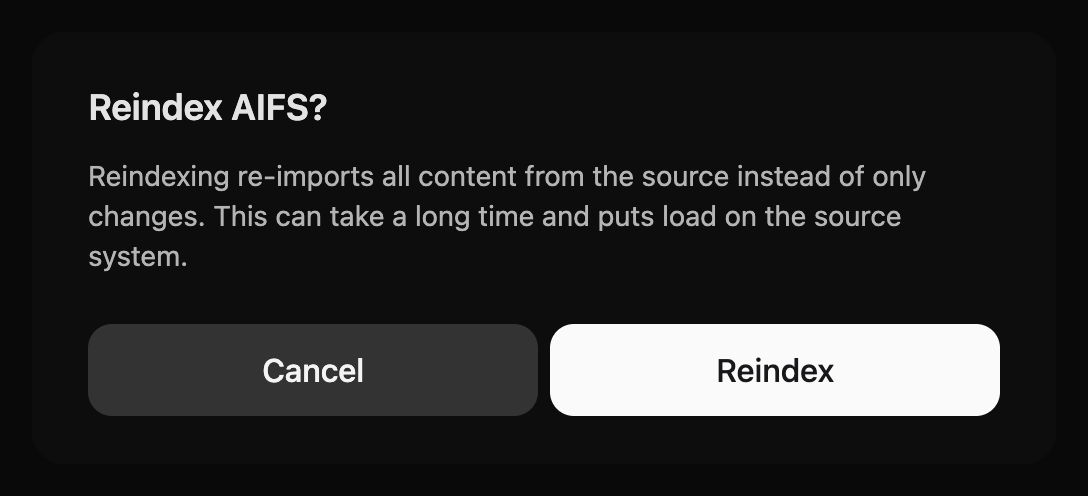
| Reindex | Re-imports all content from Confluence instead of only the changes. Use it after changing the target collection or when pages are missing. This can take a long time and puts load on the Confluence server, which is why it is disabled after 8:00 PM. |
| Edit data connection | Change URL, key, credentials, target collection or the Active switch. Leave the credential fields blank to keep the stored ones; enter them again to run the test before saving. The name and type are fixed. |
| Remove data connection | Deletes the connection and its schedule. Content already synced into the Space stays. |
How to access the data
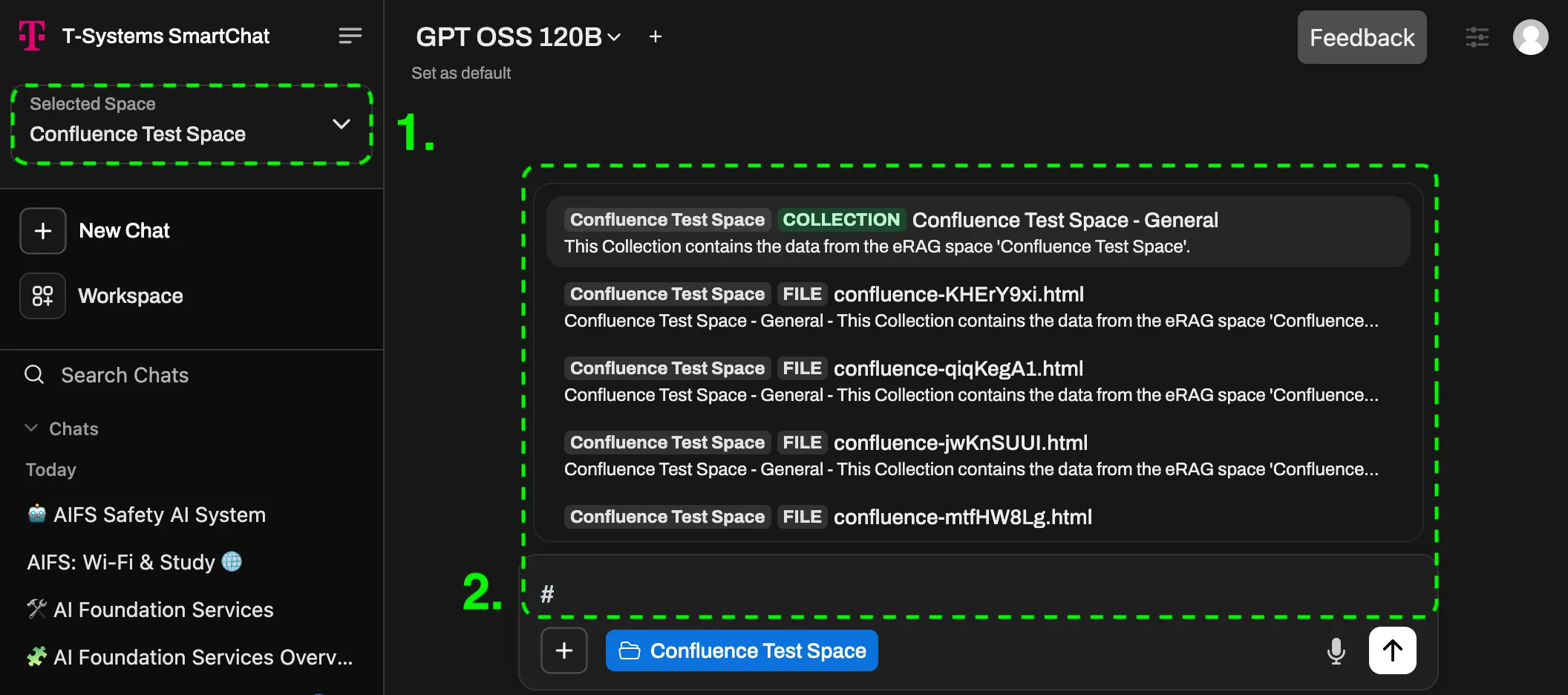
Section titled “How to access the data”Once the sync has completed, the Confluence content is available in the Smartchat chat interface.
- Select the Space from the Space selector in the top left.
- Add the target collection (by default “{Space Name} - General”) to the chat using the # shortcut.
Troubleshooting
Section titled “Troubleshooting”The connection test yields one of the following results:
| Result | Meaning |
|---|---|
| WORKS | Connection is healthy. |
| CONNECTION_ERROR | Smartchat cannot reach the server (timeout, DNS failure, connection refused). |
| MISSING_CREDENTIALS | No username or secret was provided. |
| HTTP_AUTH_FAILED | The credentials were rejected (wrong username/password or expired token). |
| HTTP_ERROR_400 | The request is malformed (usually a wrong URL path or missing parameters). |
| HTTP_ERROR_404 | The URL or space key was not found on the server. |
| HTTP_ERROR_4XX | Another client-side error (e.g. 403 Forbidden, 429 Rate Limited). |
| HTTP_ERROR_500 | Internal server error on the Confluence side. |
| HTTP_ERROR_5XX | Another server-side error on the Confluence side. |
| HTTP_ERROR | An unclassified HTTP error. |
| INVALID_RESPONSE | The server answered, but not with the expected Confluence API response, usually a wrong URL path. |
| FAILED | An unexpected error occurred. |
CONNECTION_ERROR
Section titled “CONNECTION_ERROR”Cause: The Confluence server is unreachable. The URL may be wrong, the server may be down, or there is a network/firewall issue.
Fix: Verify the correct Confluence base URL. Data Center instances typically use a path like https://your-server.example.com/confluence/. Make sure you are using the API base URL, not the URL you see in the browser when browsing pages.
HTTP_AUTH_FAILED
Section titled “HTTP_AUTH_FAILED”Cause: The username or password is wrong, or the API token has expired or been revoked.
Fix: Re-generate the API token in your Confluence account settings and verify that the username matches the token owner.
HTTP_ERROR_404
Section titled “HTTP_ERROR_404”Cause: Either the base URL path is incorrect (e.g. with or without /wiki), or the space key is wrong. The display name may have been used instead of the space key, or there is a typo. Space keys are case-sensitive.
Fix: Check the URL path first. Then look up the correct space key in Confluence under Settings → Space details.
Setup succeeds but ingestion or chat fails
Section titled “Setup succeeds but ingestion or chat fails”Cause: The Smartchat Space configuration is incomplete (no API key or default model set). Alternatively, Confluence may be throttling the API with a 429 response due to too many pages being requested at once.
Fix: Ensure the Space has a valid API key and default model configured before setting up Confluence sync. If you are being rate-limited, check with your Confluence administrator for rate limit settings. You can monitor ingestion status in the target collection.
Some or all pages missing after ingestion
Section titled “Some or all pages missing after ingestion”Cause: The API token owner lacks access to the Confluence space, or individual pages have restricted permissions that exclude the token owner.
Fix: Ensure the token owner has read access to the target Confluence space and all pages within it. Check with your Confluence administrator if page-level restrictions are in place. Then run Reindex.