
Space Settings
The Settings tab of the Admin Panel holds the configuration of the active Space. This page covers the Space and Models sections; data sources have their own guides (Confluence Sync, S3 AutoSync).
Open Admin Panel → Settings with the Space you want to configure active in the Space selector.

Confidential Data
Section titled “Confidential Data”The Confidential Data switch marks every chat in this Space as confidential, restricting it to models that may process confidential data. Turning it on:
- locks all chats in the Space to Telekom-hosted models, externally hosted models are refused,
- disables web search and tools in those chats,
- applies to every collection of the Space, regardless of the collection’s own confidentiality flag.
The change is saved immediately (toast Space configuration saved) and members see the confidential badge in the chat composer without reloading. How confidentiality propagates to collections and chats is explained in Confidentiality.
Space API Key
Section titled “Space API Key”Smartchat needs a key from the API Key Portal to reach model serving on behalf of the Space.
- Paste the key into Space API Key and press Enter (or click outside the field). The toast Space API key saved confirms the update.
- The hint below the field tells you the state: A key is configured. Enter a new one to replace it. or No key is configured. This space cannot reach model serving without one.
Max Upload Size
Section titled “Max Upload Size”Where upload control is enabled for your environment, Max Upload Size limits the size of a single file upload in MB. Leave it empty for no limit. The value is saved when you leave the field.
Models
Section titled “Models”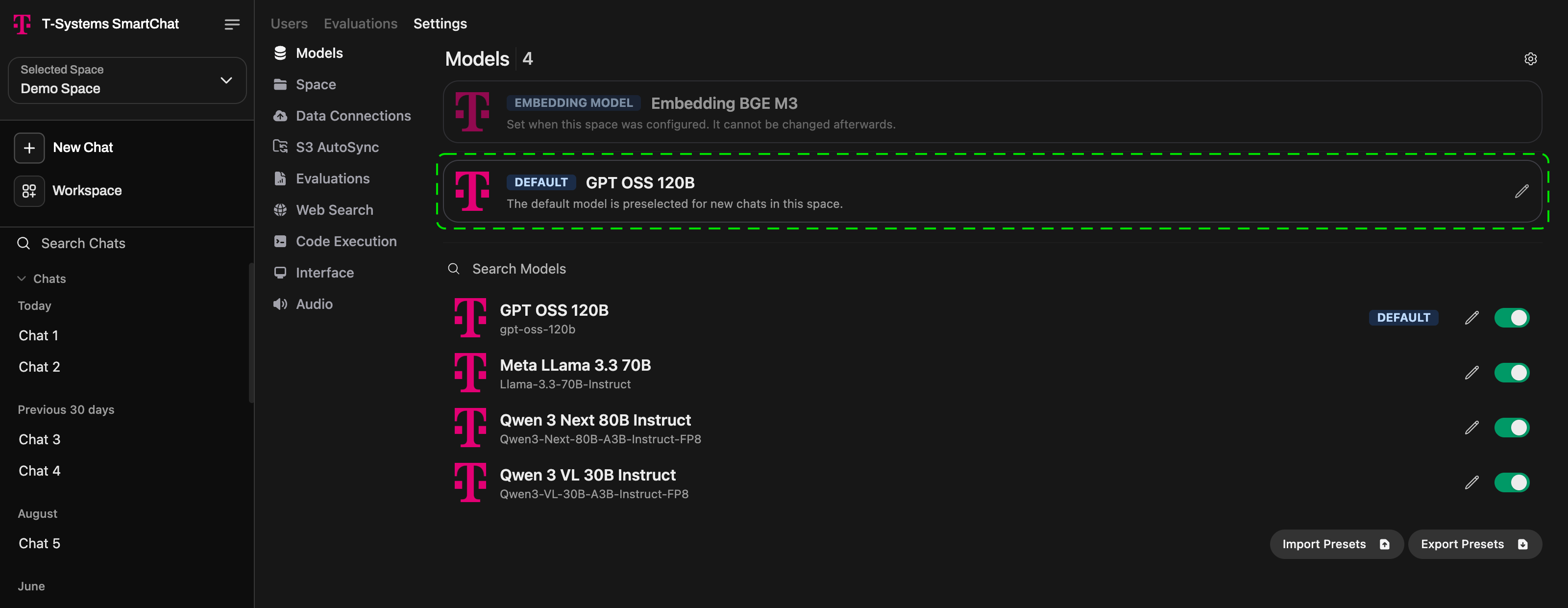
- Enable and disable models: the list shows all models available to the Space. Use the toggle in each row to control which ones your members can pick. Search Models filters the list.
- Default model: the model preselected for new chats in this Space. Pick a model or an assistant. If the chosen model is later withdrawn, the selector shows The selected default model is no longer available. and the eRAG default is used until you pick a new one.
- Embedding Model: shown for information only. It was set when the Space was configured and cannot be changed afterwards, because all existing embeddings depend on it.
- Import Presets / Export Presets: exchange model presets between Spaces as JSON.
Web Search
Section titled “Web Search”Where per-Space web search configuration is enabled, the Web Search tab lets you choose the search engine and enter its credentials for this Space only. A banner reminds you that the changes apply only to this Space.