
S3 AutoSync
S3 AutoSync ingests files from an S3-compatible bucket (OTC Object Storage, OBS) into your Smartchat Space on a schedule. New, changed and removed files in the bucket are picked up and become searchable context for every member of the Space.
Prerequisites
Section titled “Prerequisites”- You need the Space Owner role in the Smartchat Space. See Roles for details.
- An S3 bucket, its endpoint URL and an access key pair with read access to it. Files are uploaded to the bucket with your own tooling (for example
boto3, the OBS Browser or the Huawei SDK). - S3 AutoSync must be enabled for your Smartchat environment. If the S3 AutoSync page is missing, ask your Application Owner.
Step 1 — Open S3 AutoSync
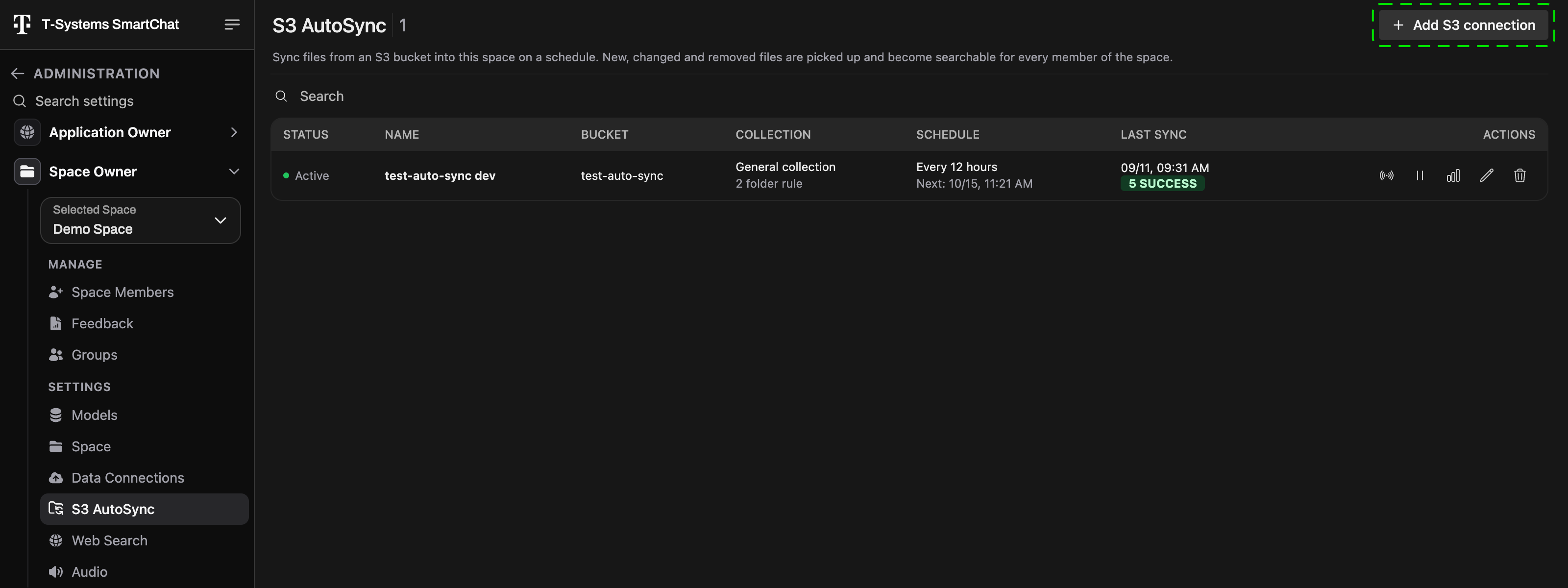
Section titled “Step 1 — Open S3 AutoSync”Click your profile image, choose Administration, and pick the Space in Selected Space under Space Owner. Then open S3 AutoSync. The table lists the S3 connections of this Space and refreshes itself every minute.
Step 2 — Add a connection
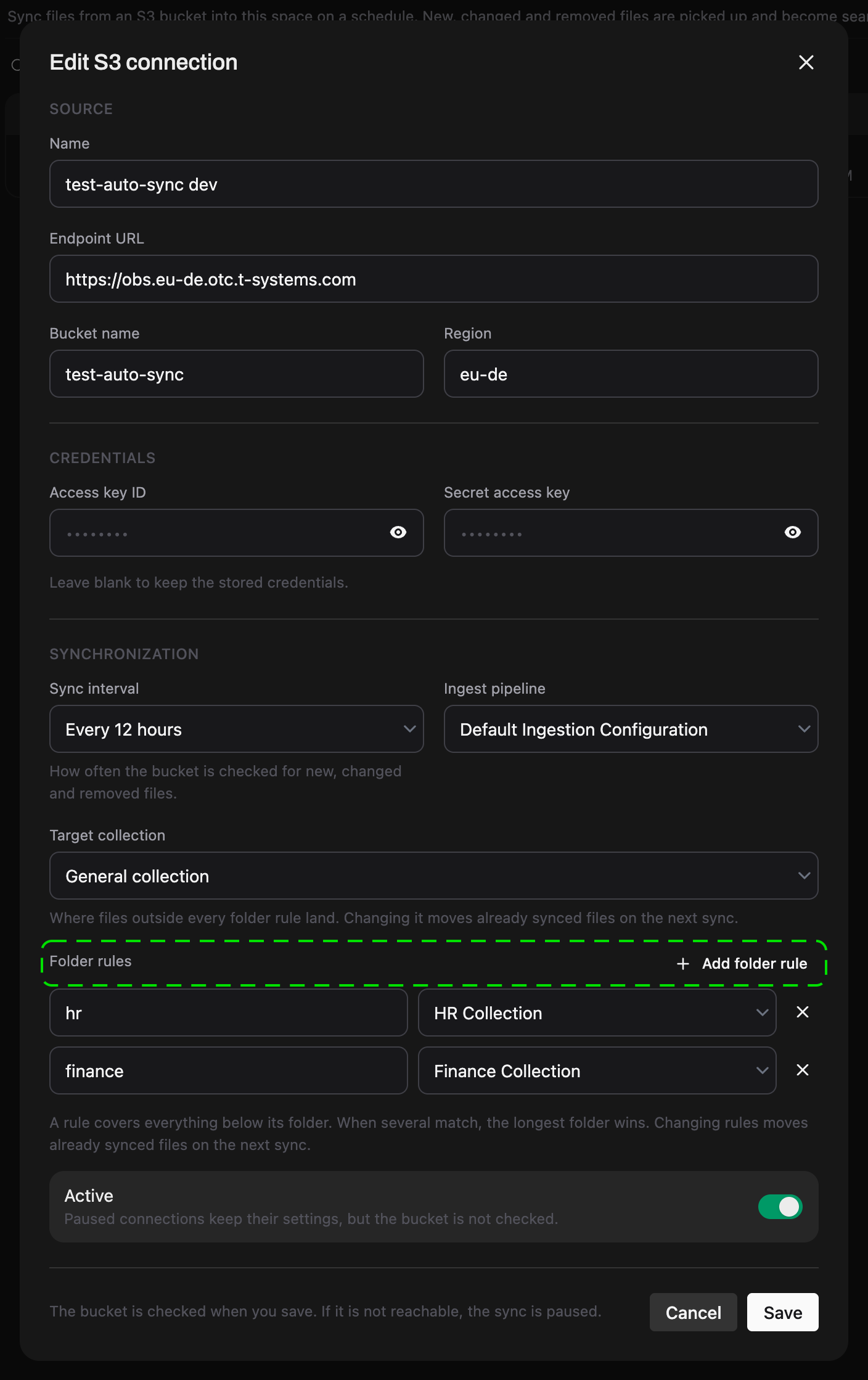
Section titled “Step 2 — Add a connection”Click Add S3 connection and fill in the form:
Source
| Field | Description |
|---|---|
| Name | A name for the connection, shown in the table. |
| Endpoint URL | The S3 endpoint, e.g. https://obs.eu-de.otc.t-systems.com. |
| Bucket name | The bucket to watch: lowercase letters, digits, dots and hyphens. |
| Region | The bucket’s region, eu-de for OTC. |
Credentials
| Field | Description |
|---|---|
| Access key ID / Secret access key | A key pair with read access to the bucket. The values are stored encrypted and never shown again; leave both blank when editing to keep them. |
Synchronization
| Field | Description |
|---|---|
| Sync interval | How often the bucket is checked: Every 15 minutes, Every hour (default), Every 6 hours, Every 12 hours, Daily or Weekly. |
| Ingest pipeline | Only shown when the Space has more than one ingestion configuration. Choose which one processes the synced files. |
| Target collection | Where files land that no folder rule covers. General collection is the Space’s default collection. Changing it later moves already synced files on the next sync. |
| Folder rules | Route folders of the bucket into other collections, see Folder rules. |
| Active | Leave on. Paused connections keep their settings, but the bucket is not checked. |
Click Save. Smartchat checks the bucket with the given credentials right away:
- On create, an unreachable bucket is rejected. Nothing is stored until endpoint, bucket and keys are correct.
- On edit, the connection is saved either way; if the bucket is not reachable the sync is paused (toast Connection saved, but the bucket is not reachable. The sync stays paused until the settings are fixed.).
The first run starts with the next interval. Files already in the bucket are ingested on that run; from then on only additions, changes and deletions are processed.
Folder rules
Section titled “Folder rules”By default every file of the bucket lands in the Target collection of the connection. If you funnel several data sources into one bucket, you can instead route each folder into its own collection with folder rules.
In the form, click Add folder rule and enter the folder path inside the bucket (e.g. reports/2026) and the Target collection for it. Add one row per folder; a folder may appear only once.
How folders are matched
Section titled “How folders are matched”- A rule applies to every object inside the folder, at any depth.
reports/2026matchesreports/2026/q1.pdfandreports/2026/archive/old.pdf. - Matching stops at folder boundaries:
reports/2026does not matchreports/2026-old/x.pdf, and a rulereportsdoes not matchreportsarchive/x.pdf. - If there is a rule for a folder and another rule for one of its subfolders, the rule for the subfolder takes precedence. The order of the rules does not matter.
- Files that no rule covers use the connection’s Target collection.
- Leading and trailing slashes are ignored.
Example with the connection’s Target collection set to Misc:
| Rule | Files | Collection |
|---|---|---|
reports/2026 | reports/2026/q1.pdf | Finance 2026 |
reports | reports/2025/q4.pdf, reports/summary.pdf | Finance |
| (none) | reports/2026-old/x.pdf, hr/leave.pdf, readme.txt | Misc |
Changing the rules
Section titled “Changing the rules”Changed rules take effect on the next scheduled sync. Files that were already synced under the previous rules are moved: on the next run AutoSync re-ingests each affected file into its new collection and removes it from the old one, exactly as if the file had changed in the bucket. The same happens when you change the connection’s Target collection.
Keep in mind:
- Moving is a re-ingest. A rule that covers many files causes correspondingly many ingestions, processed in batches over consecutive runs.
- A file whose move fails shows up with a failed status in the collection, like any other failed ingestion, and is retried on the next change of that file.
- Only files that AutoSync itself uploaded are moved. A copy of the same file that someone uploaded manually keeps its collection.
Monitoring a connection
Section titled “Monitoring a connection”| Column | Meaning |
|---|---|
| Status | Active: scheduled and running. Paused: settings kept, bucket not checked. No schedule: saved without a schedule yet. |
| Bucket | The bucket name; hover for the endpoint URL. |
| Collection | The target collection and the number of folder rules. |
| Schedule | The interval and Next: the time of the next run. |
| Last sync | When the last run finished, with counts of Success, Failed and Pending files. |
Click the connection’s Name to copy it to the clipboard.
Sync statistics
Section titled “Sync statistics”Sync statistics opens a summary of the connection: All time totals for Files processed, Added, Updated and Removed, and a table of the Last sync runs with the same counts per run.
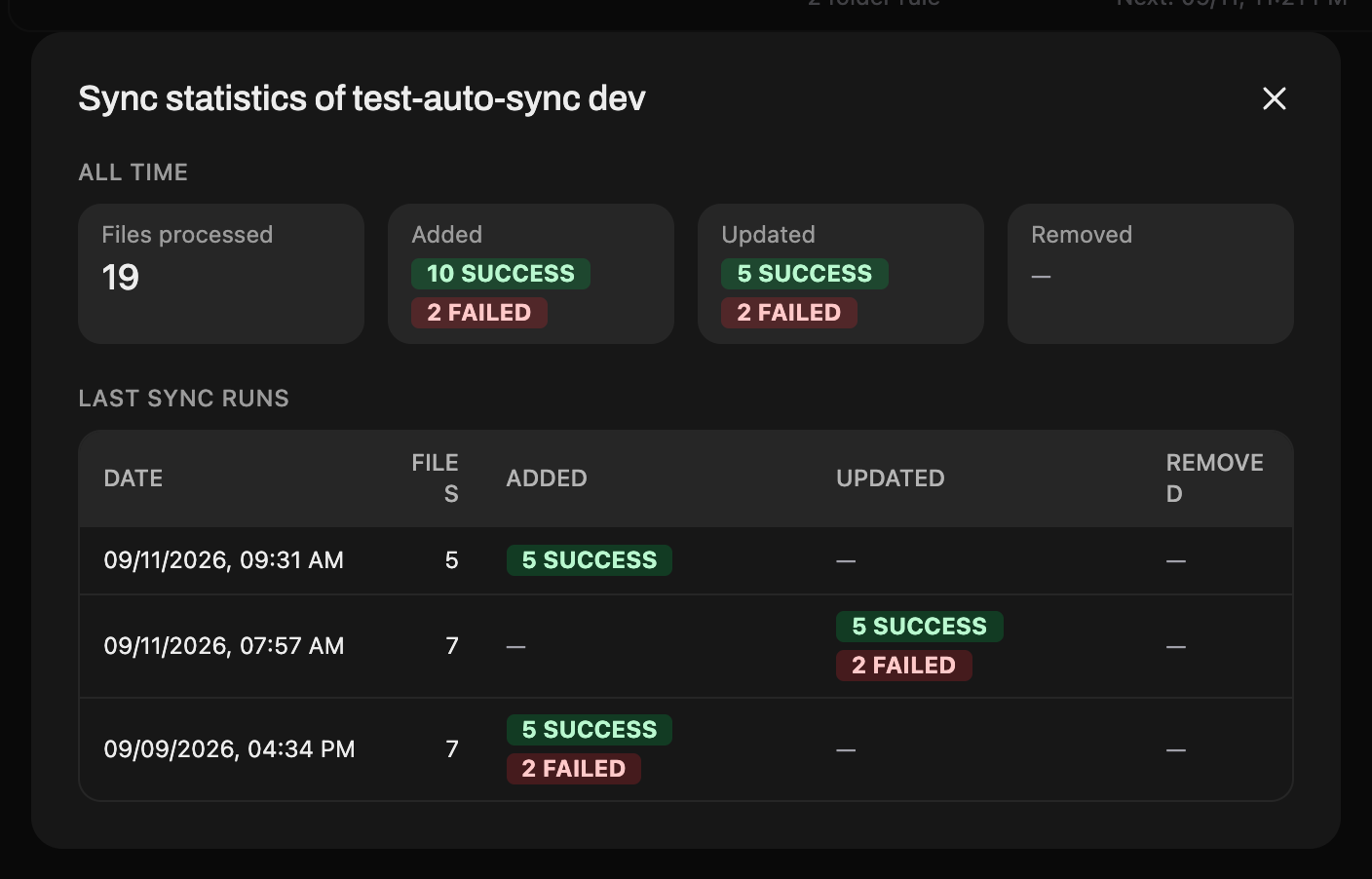
Failed files are listed with their error in the target collection under Workspace → Knowledge; see Ingestion Errors for the meaning of each status.
Managing connections
Section titled “Managing connections”| Button | Action |
|---|---|
| Test connection | Checks whether the bucket is reachable with the stored credentials. |
| Pause sync / Resume sync | Stops checking the bucket until you resume. Already synced files stay in the Space. |
| Sync statistics | Opens the statistics dialog described above. |
| Edit S3 connection | Change endpoint, bucket, credentials, interval, target collection or folder rules. |
| Remove S3 connection | Deletes the connection and its schedule. Content already synced into the Space stays. |