
Managing Connectors
Connectors bring MCP servers into Smartchat. Making one available takes two steps:
- The MCP server is registered for the whole instance. This is done by the operators of Smartchat. To add a server, contact your T-Systems representative with the server’s URL.
- In each Space, an Application Owner or Space Owner decides who may use the connector.
Users can never add MCP servers themselves. Every connector is approved by an administrator, so your organisation decides which systems Smartchat talks to.
Registering an MCP server
Section titled “Registering an MCP server”A connector needs a Name and the server’s URL, plus an optional Description that users see. No API key or password is entered.
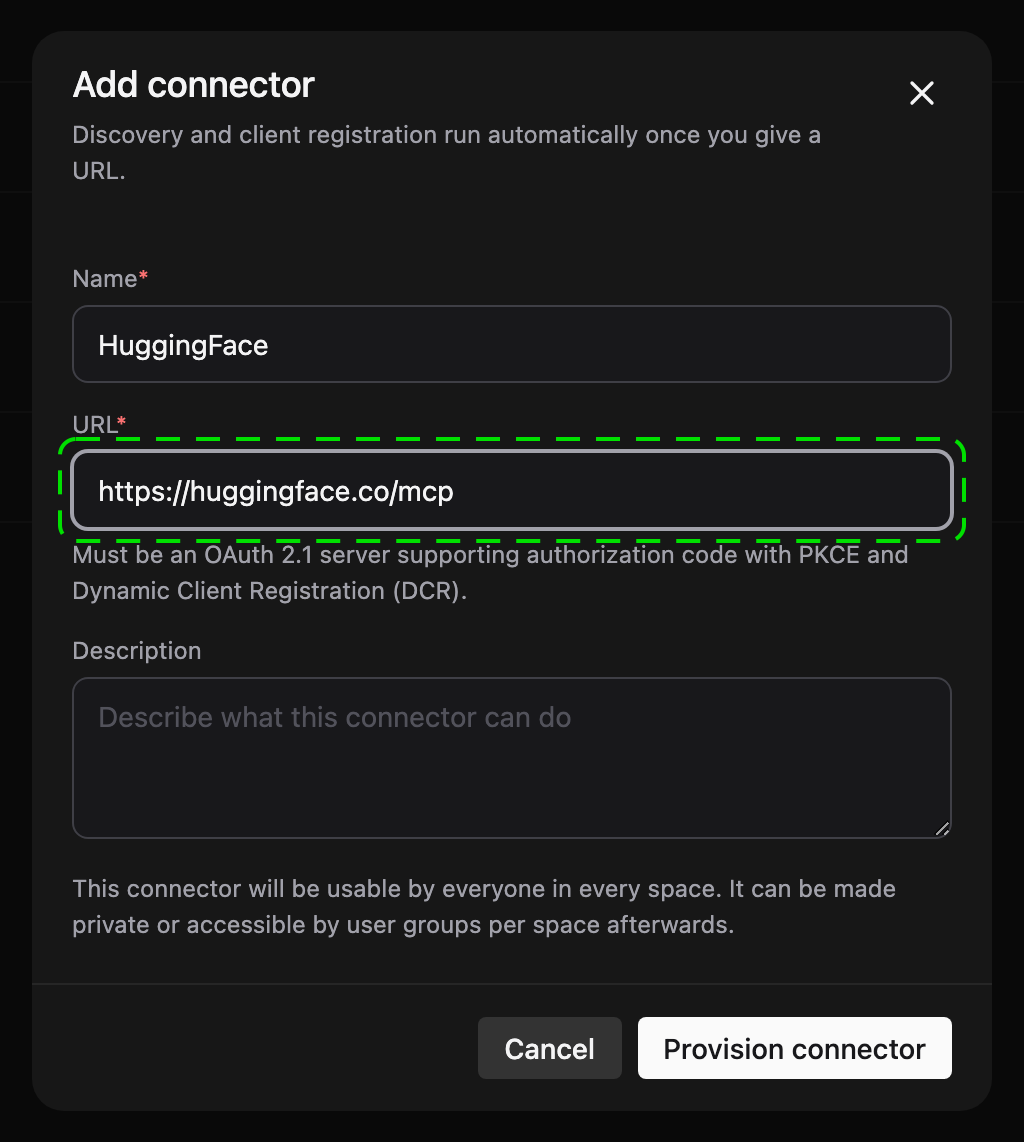
When you click Provision connector, Smartchat discovers the server’s sign-in endpoints and registers itself with the server as an OAuth client (dynamic client registration). The client secret is stored in Smartchat’s secret store. From then on, each user signs in to the server with their own account when they connect.
The server therefore has to support OAuth 2.1 with the authorization code flow, PKCE and dynamic client registration.
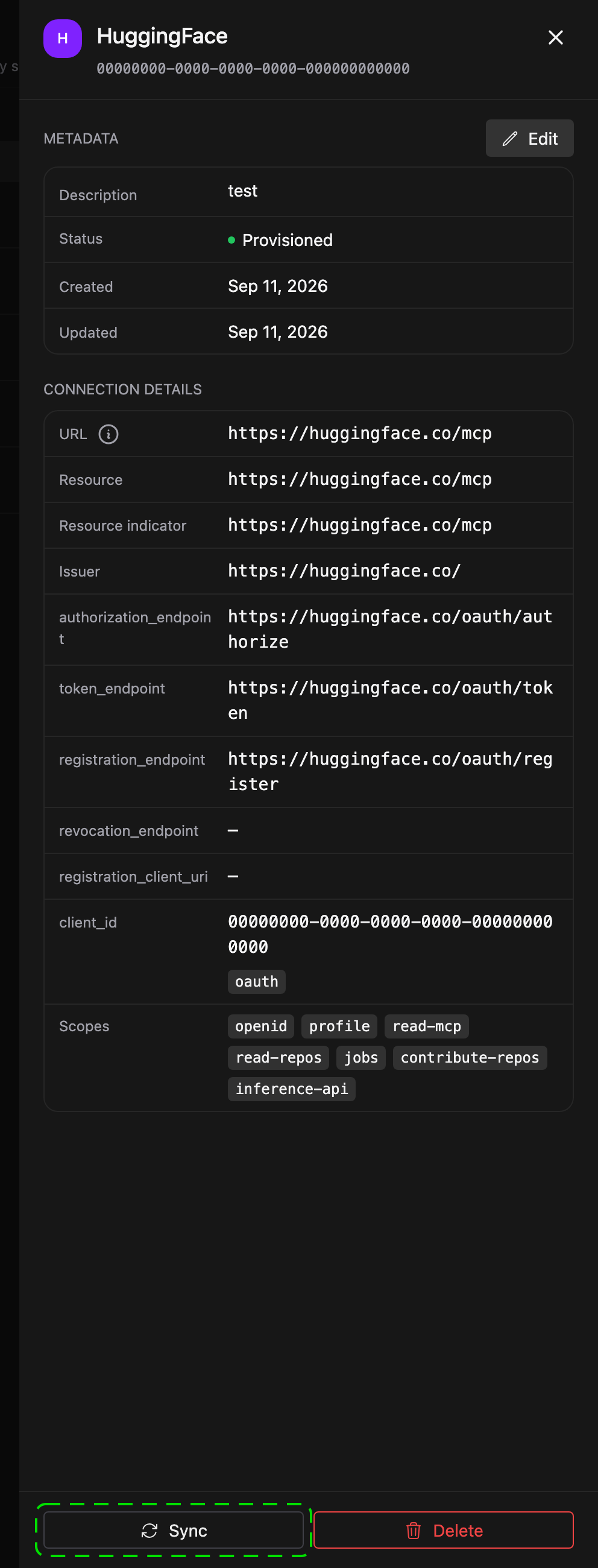
A new connector is usable by everyone in every Space until access is restricted per Space.
Renewing the registration
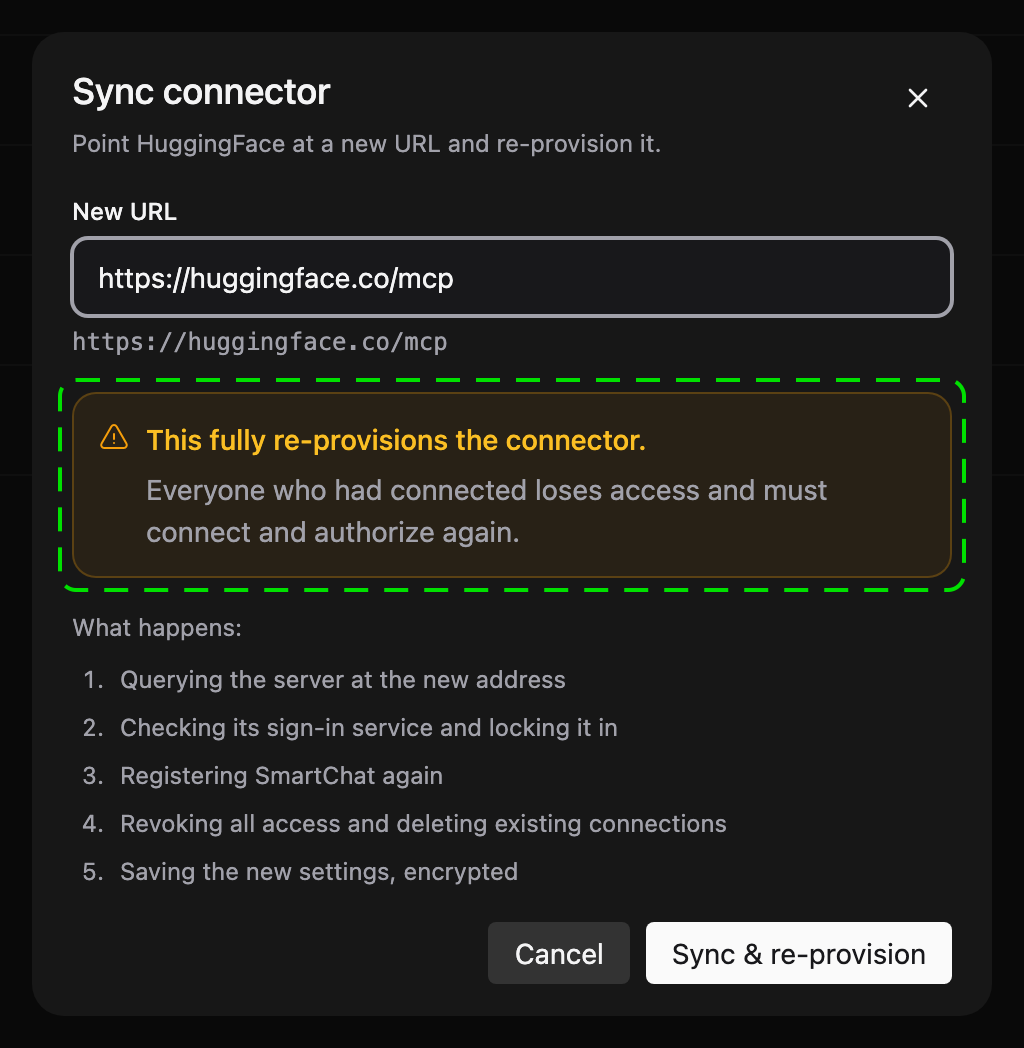
Section titled “Renewing the registration”Sync registers Smartchat with the server again and creates a new client. All users who had connected are disconnected and have to connect again the next time they use the connector.
Choosing who can use a connector
Section titled “Choosing who can use a connector”Application Owners and Space Owners control access per Space in Workspace → Connectors. The page lists every registered connector with three options:
| Option | Who can use the connector in this Space |
|---|---|
| Public | Every member of the Space. This is the default. |
| Admin | Application Owners only. |
| Group | Members of the groups you select. |
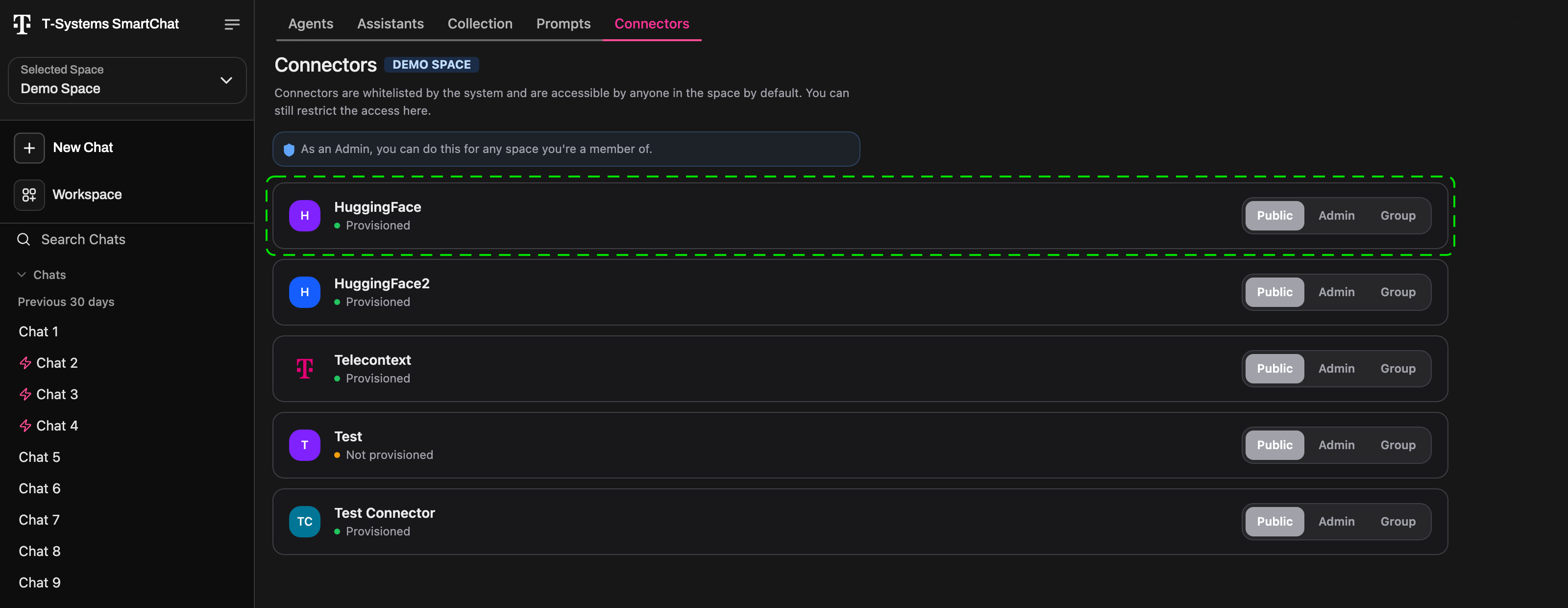
Space Owners can do this for the Spaces they own. Application Owners can do it for every Space they are a member of. The setting applies to the Space shown in the Space selector.