Understanding & Using Outputs
Viewing sources
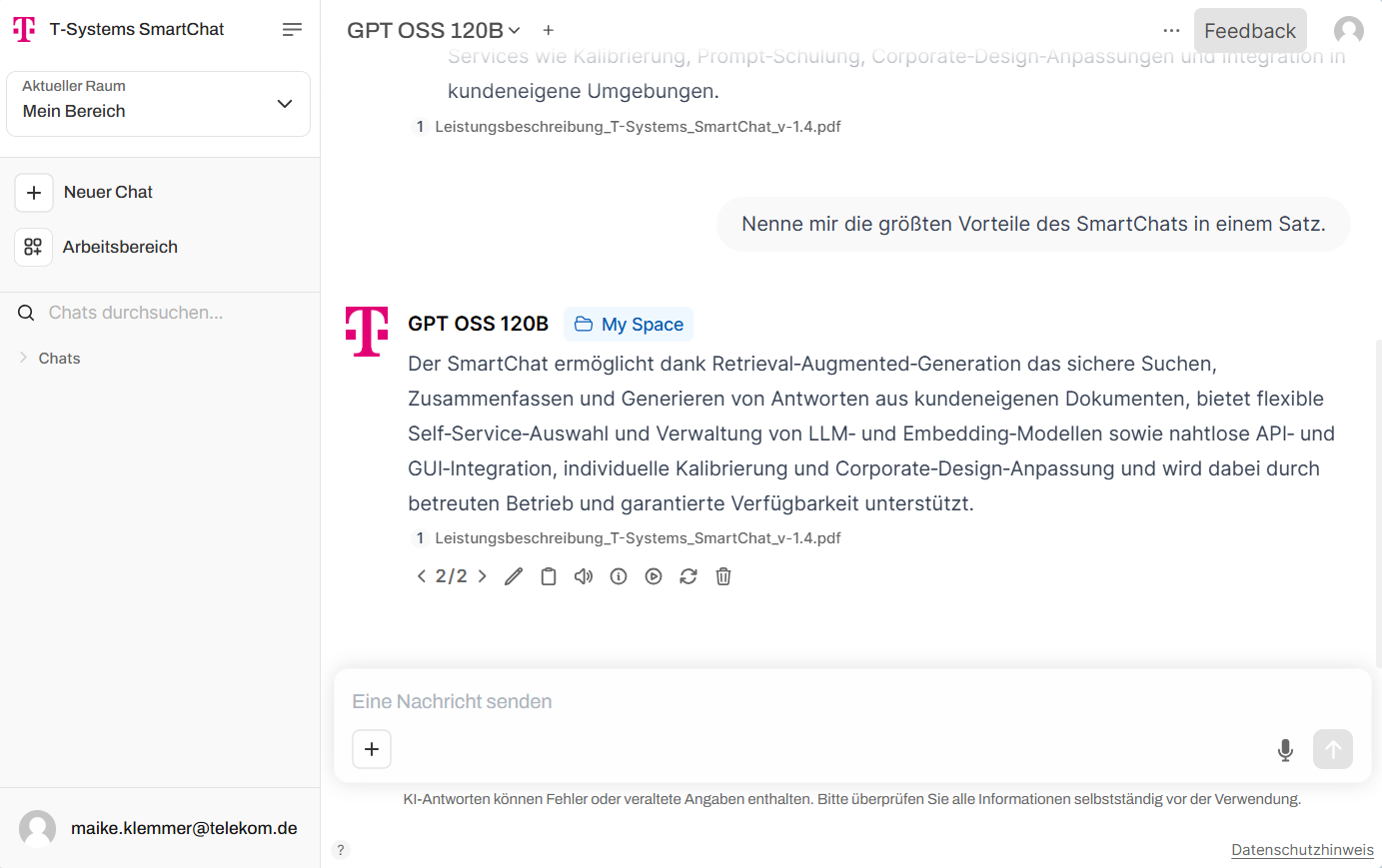
Section titled “Viewing sources”When a space’s knowledge is used to generate a response, the response includes up to five references at the bottom. Click a source to view more details.
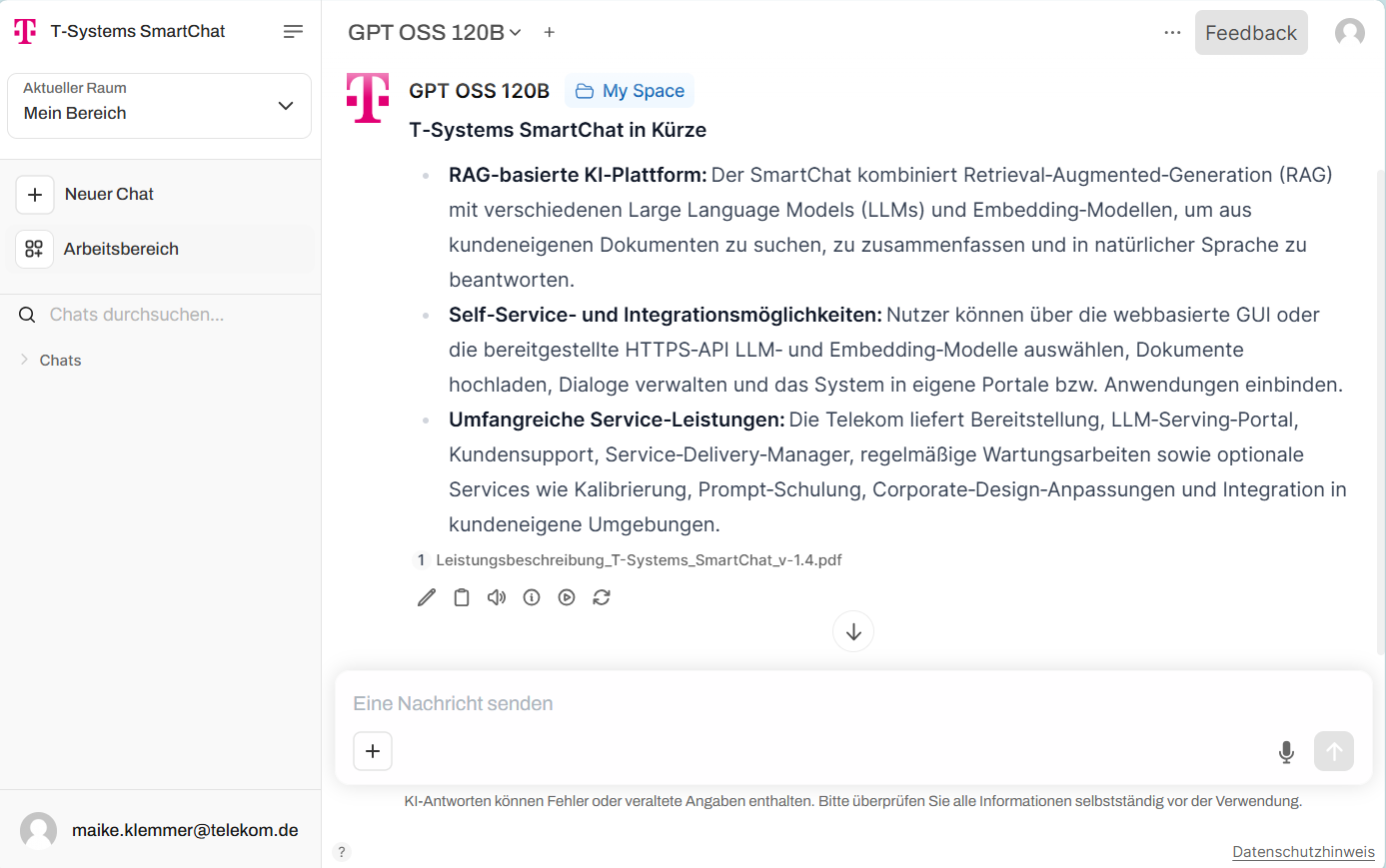
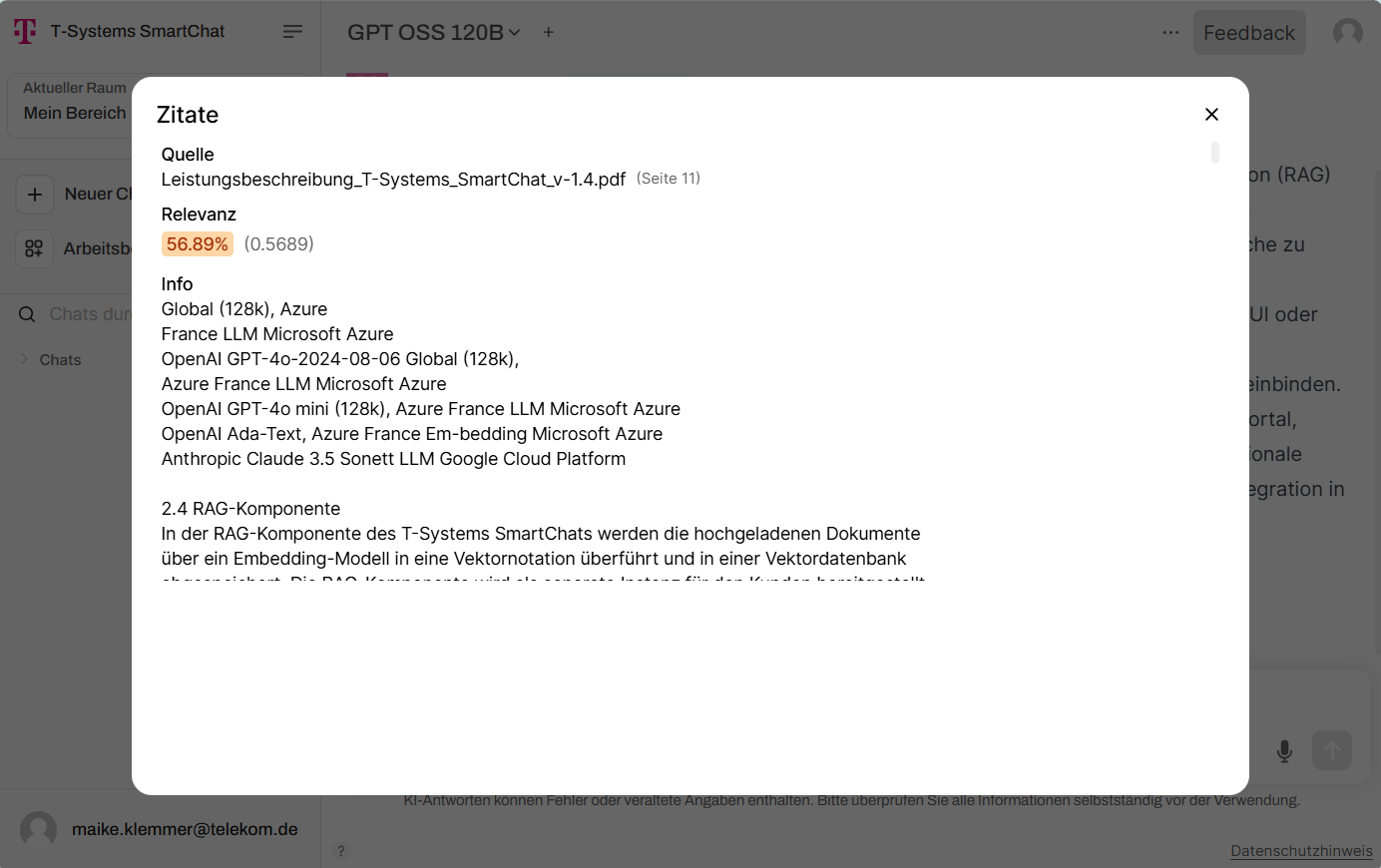
The percentage next to each source indicates how strongly the document correlates with the generated response (relevance score):
- High percentage (90%–100%) — Most of the content can be derived almost exclusively from this document.
- Medium percentage (50%–80%) — The document contributes significantly but is only part of a composite answer.
- Low percentage (below 50%) — The document is only peripherally involved (supporting evidence, background knowledge).
The values are produced automatically by Smartchat’s retrieval and ranking mechanism: the semantic similarity between document content and response sections is measured and converted into a percentage relevance score.
Functions on responses
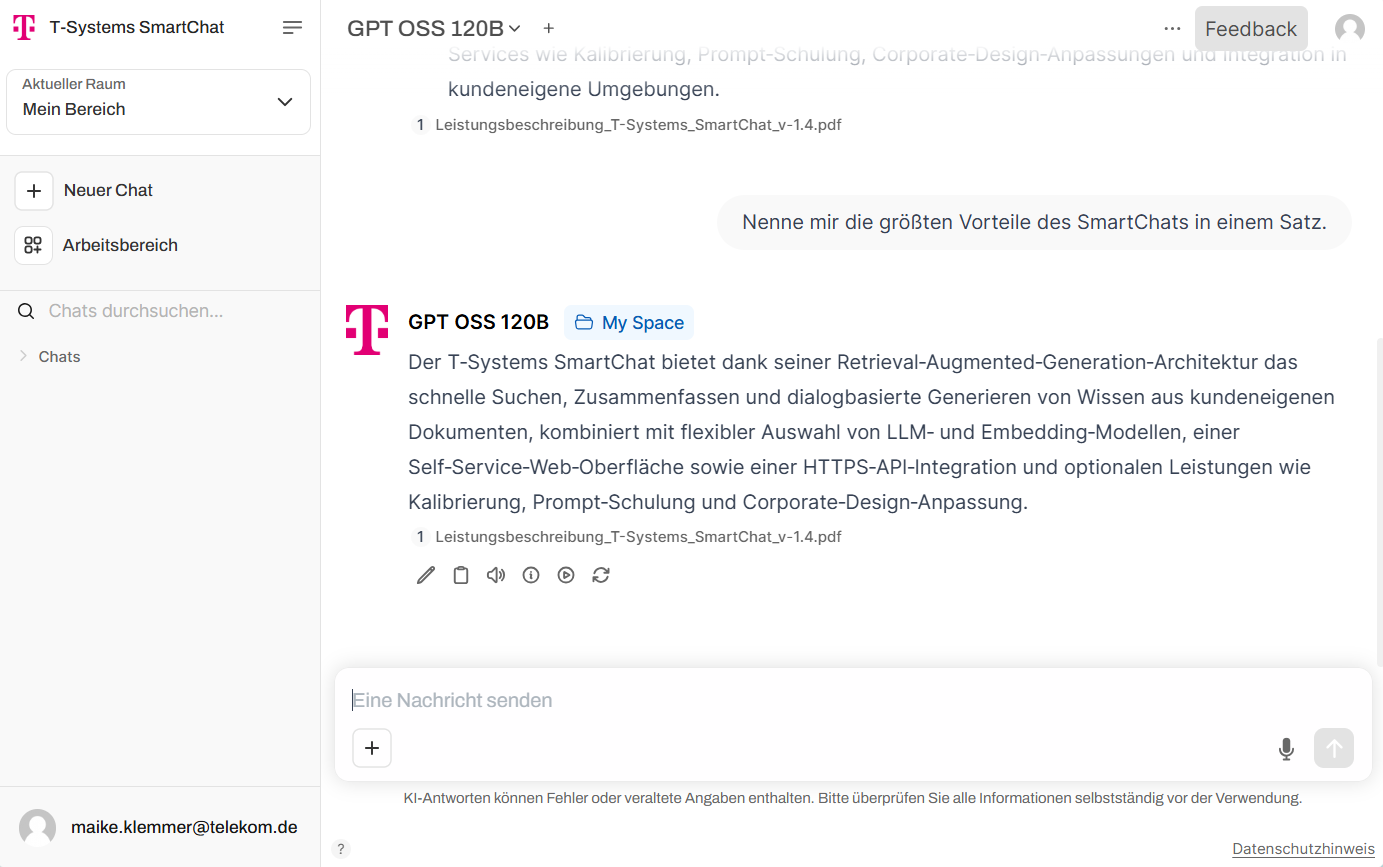
Section titled “Functions on responses”You can further interact with Smartchat responses: edit, copy, read aloud, continue, stop, or regenerate.
Edit response
Section titled “Edit response”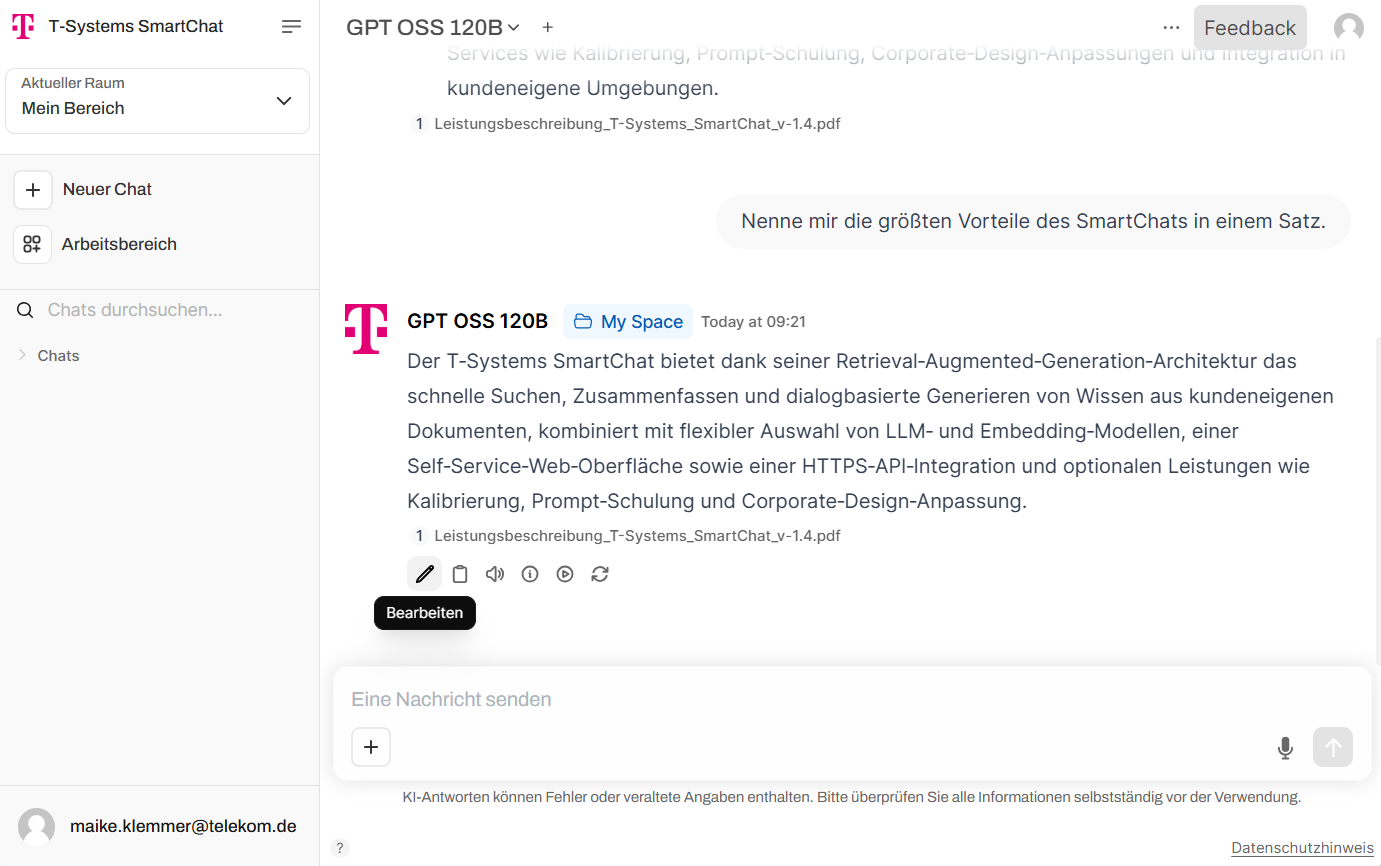
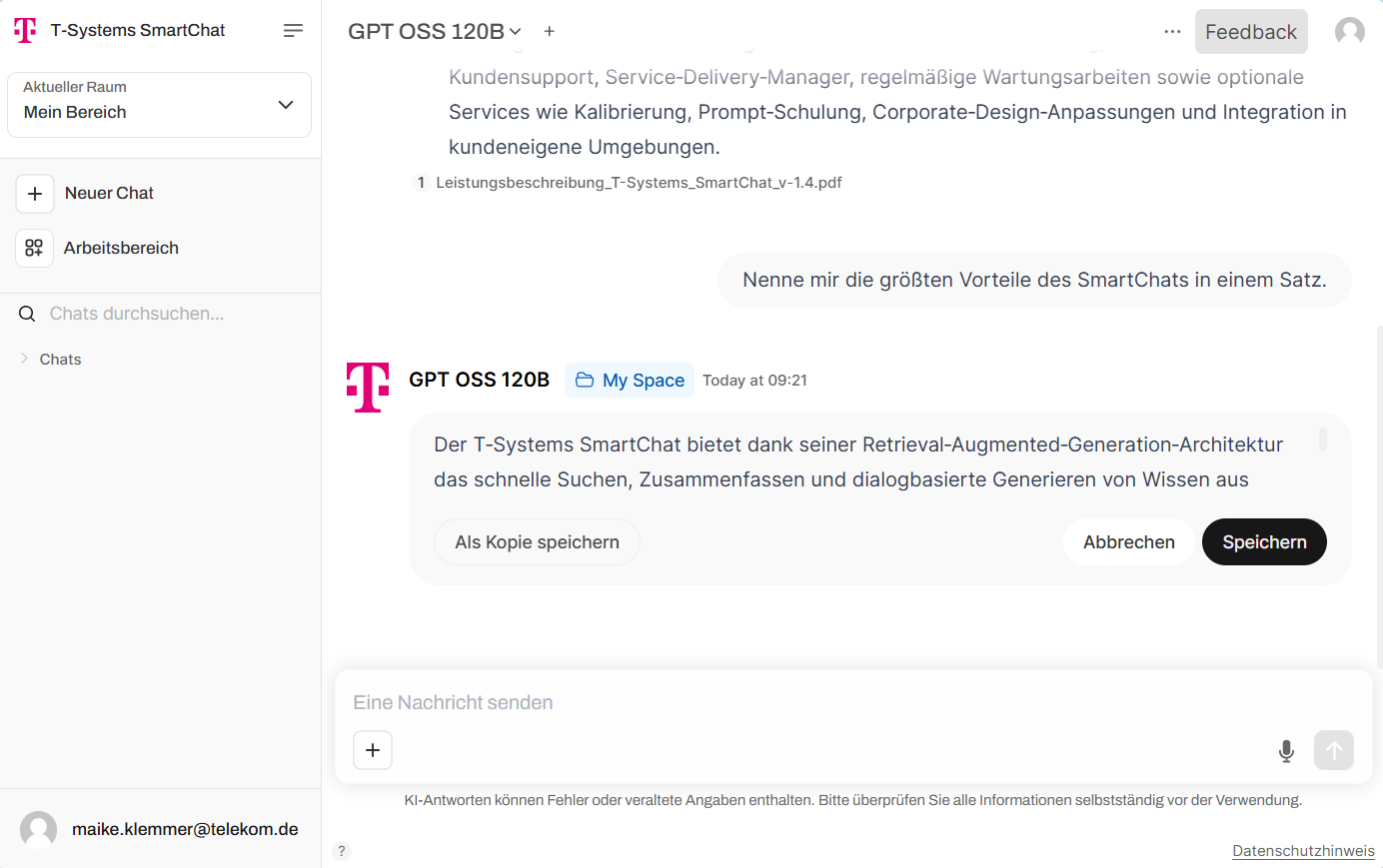
Click the pencil icon to edit a response. Use “Save as Copy” to save the output as a separate copy, or the Save button to overwrite.
Copy response
Section titled “Copy response”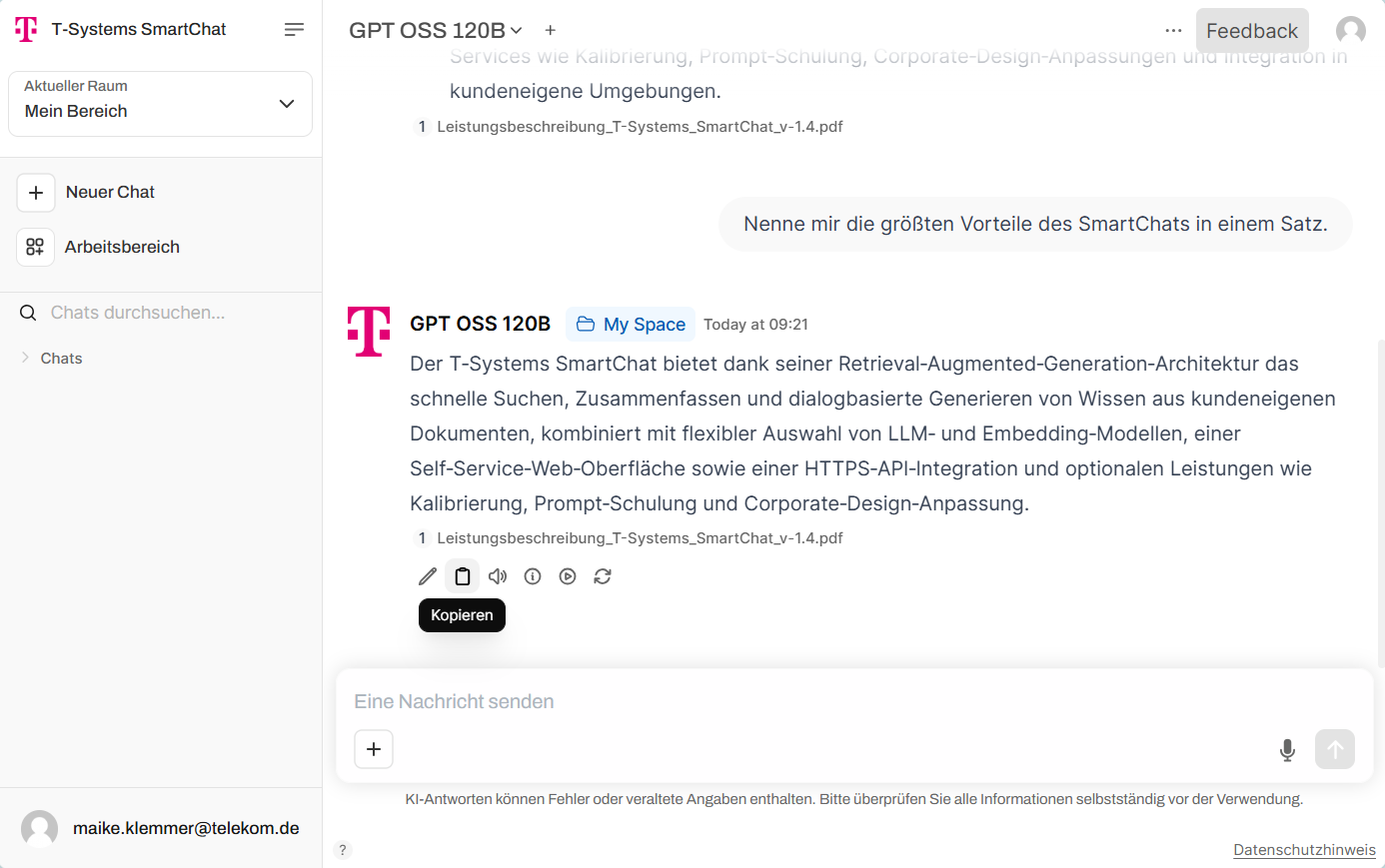
Click the copy icon to copy the response to your clipboard.
Read response aloud
Section titled “Read response aloud”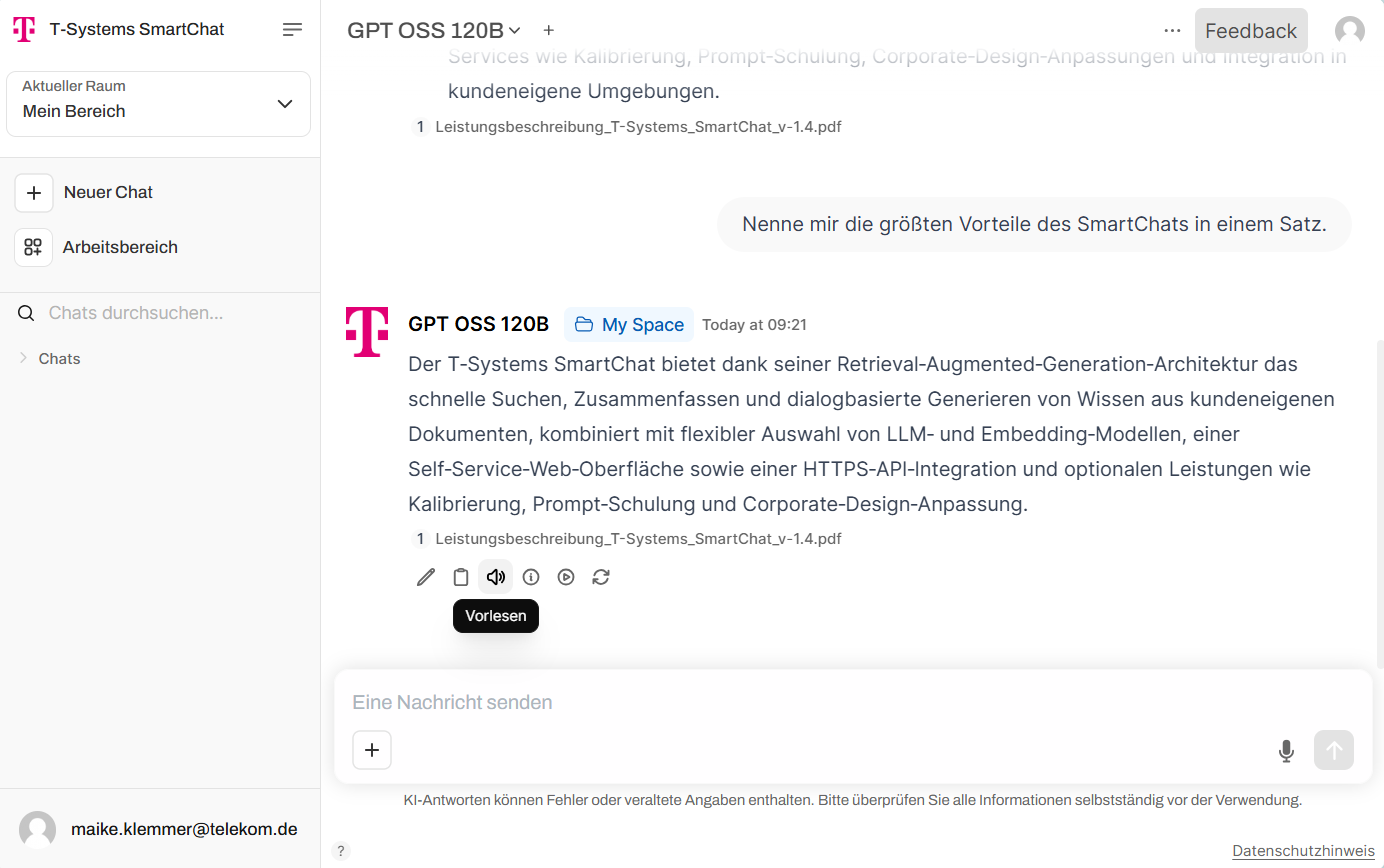
Click the speaker icon to have the response read aloud.
Continue/stop response
Section titled “Continue/stop response”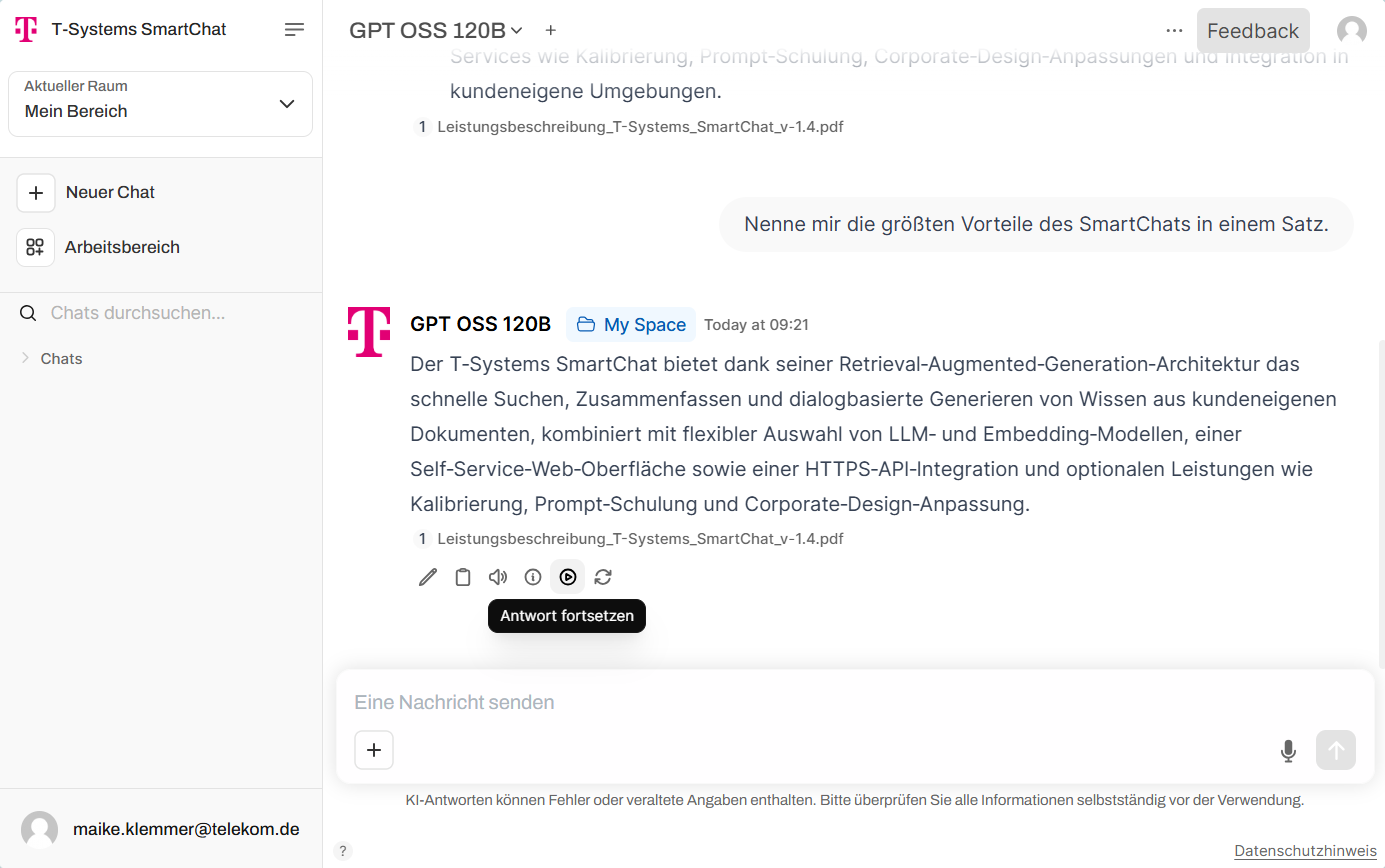
Click the play icon to generate additional text.
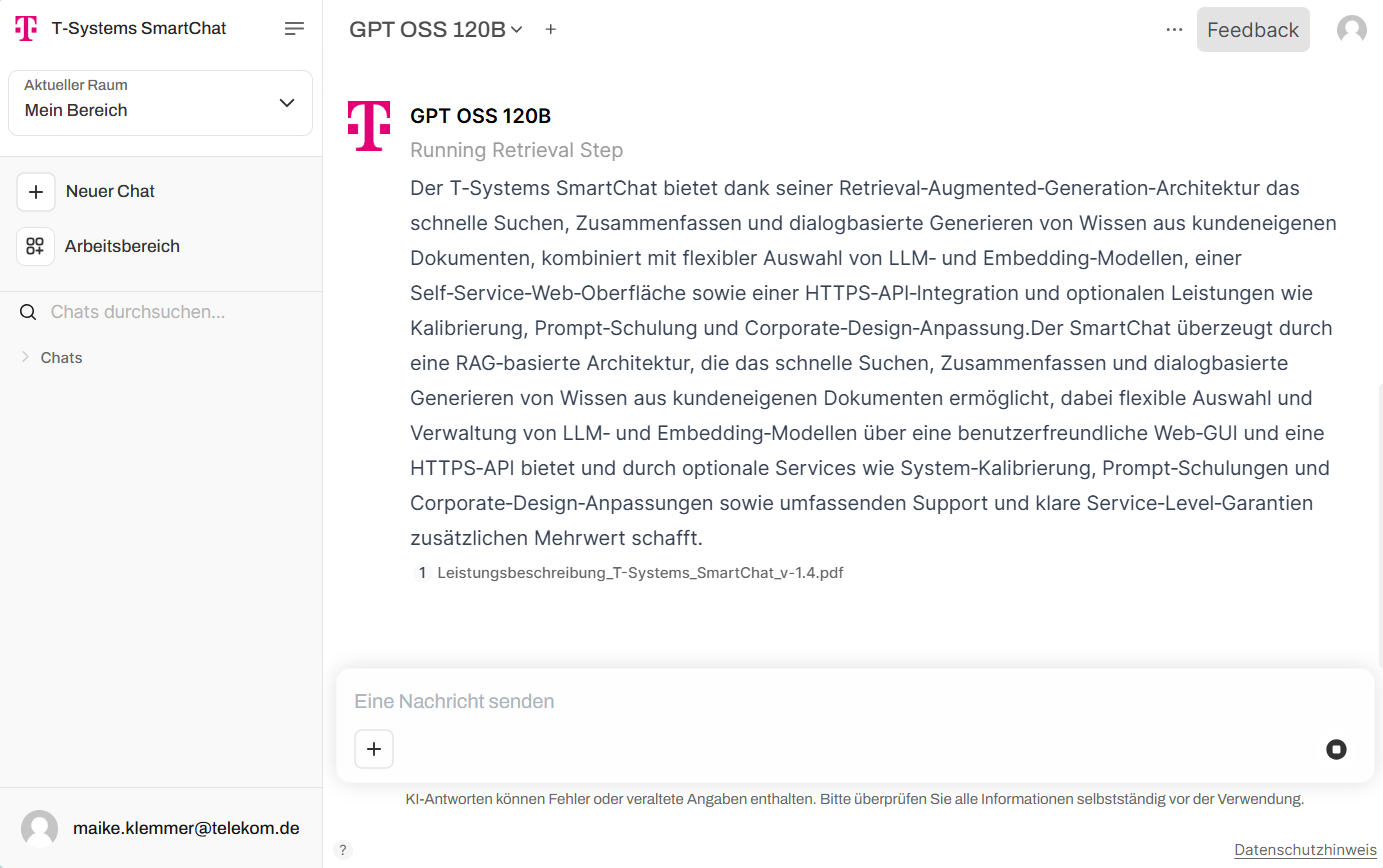
An ongoing response can be interrupted using the “Stop” icon next to the text input.
Regenerate response
Section titled “Regenerate response”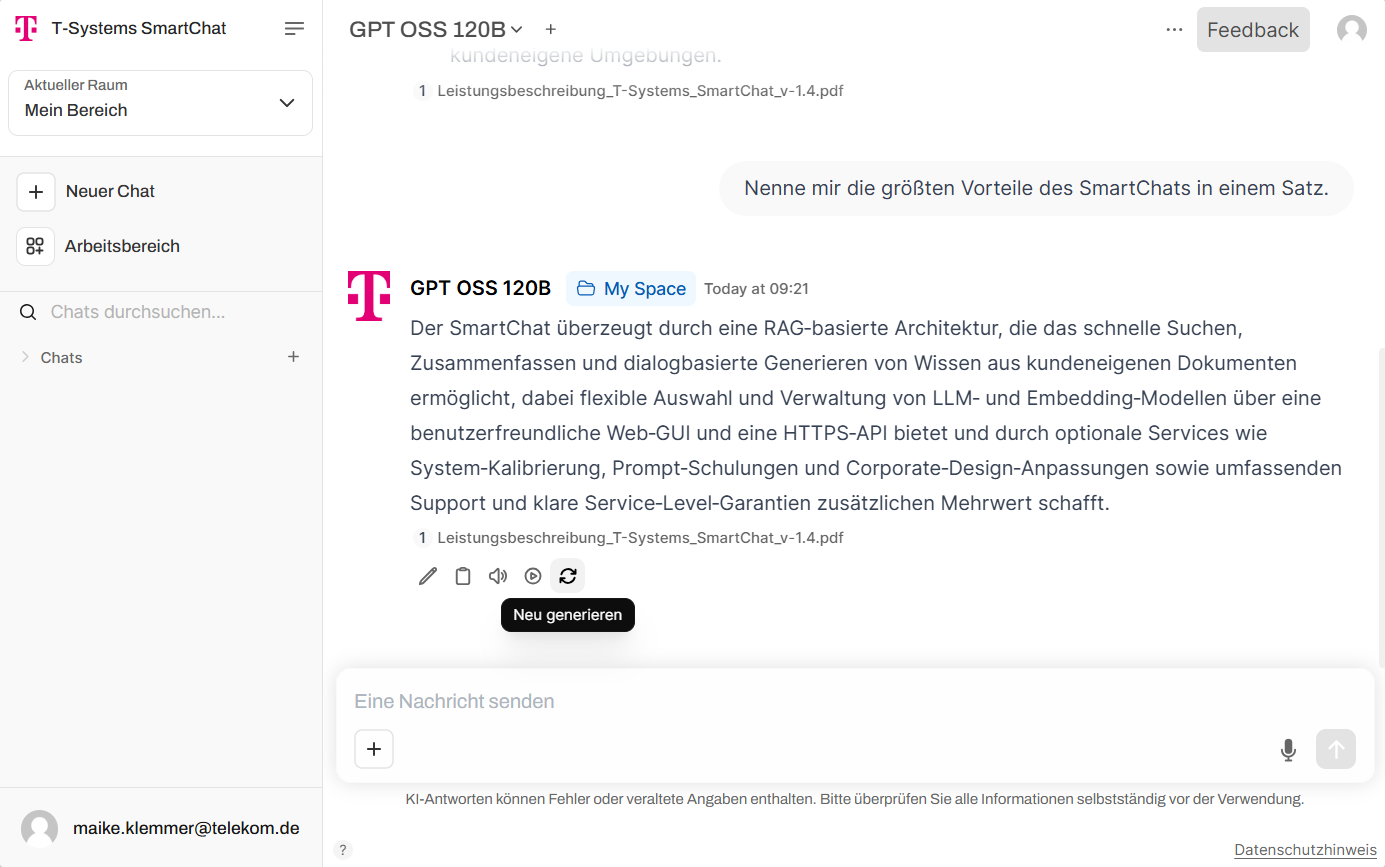
The cycle icon prompts the LLM to rephrase the response using different wording.