Starting a Chat
Open a new chat
Section titled “Open a new chat”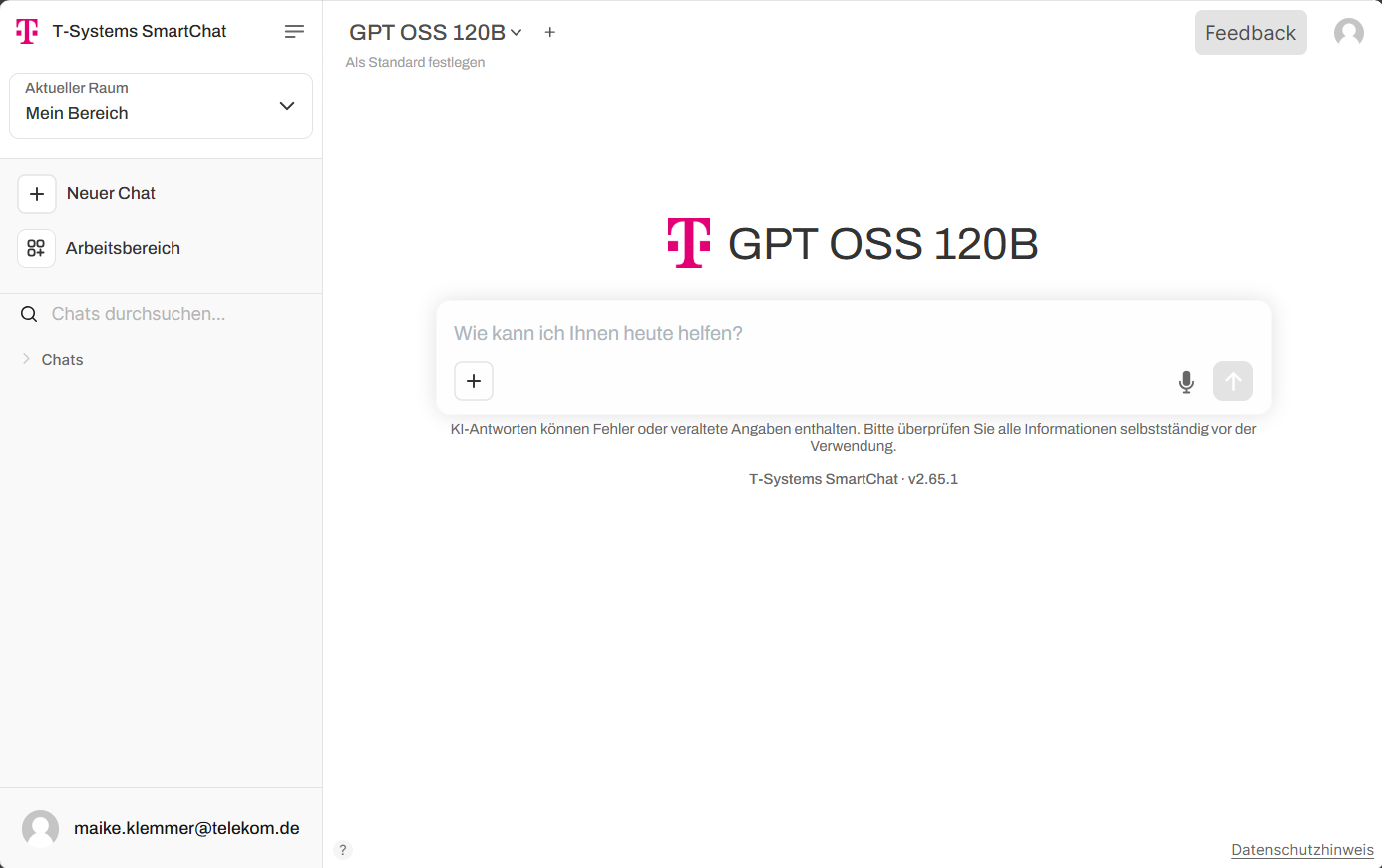
Click “New Chat” in the left sidebar to start a new (empty) chat. In each chat, you can choose which of the available language models to use. In addition to a single model, you can also interact with two or more models simultaneously in a multi-model chat to compare their responses.
Select a model
Section titled “Select a model”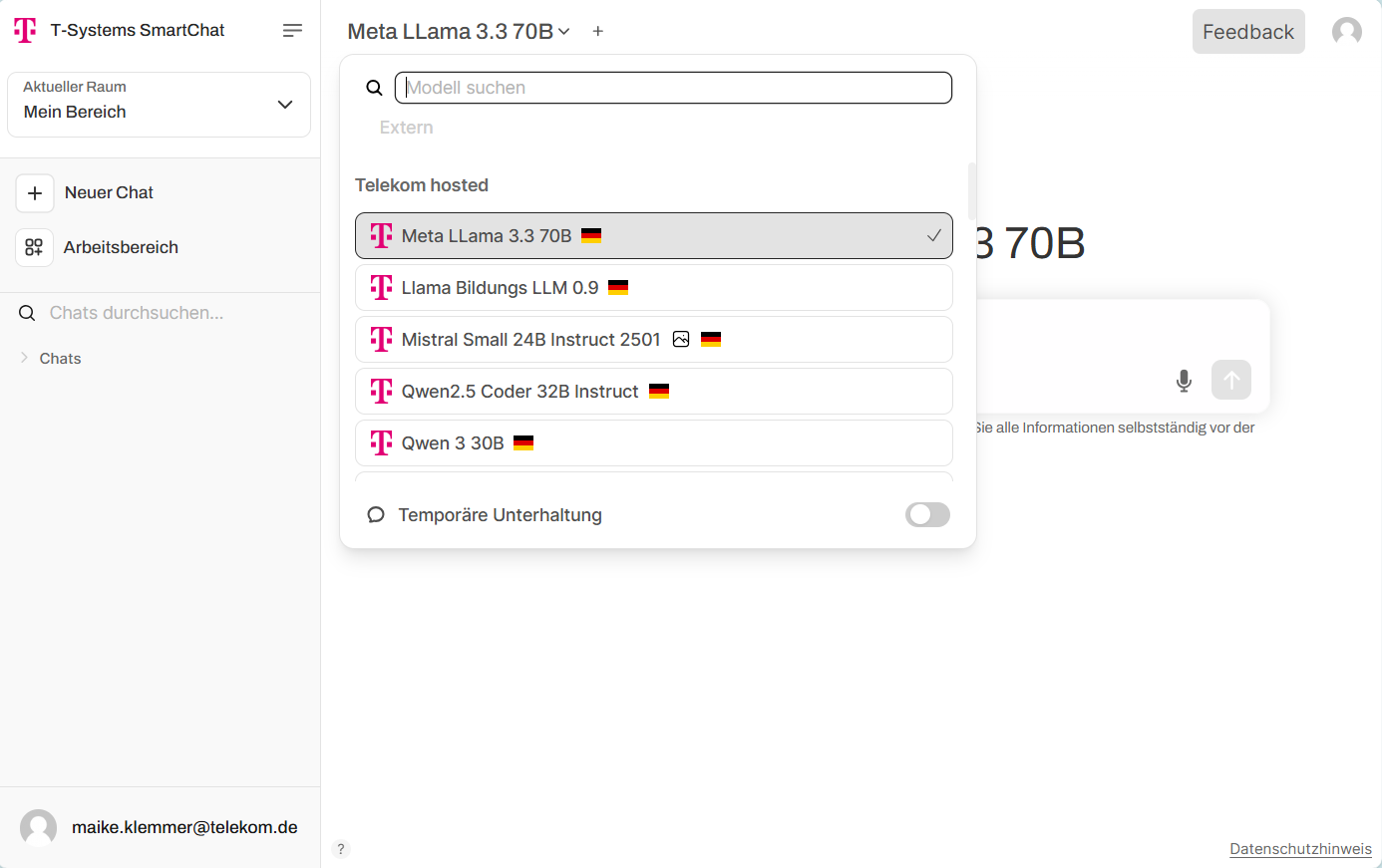
Click the dropdown menu showing the currently selected model to switch models. Model names include visual indicators:
- Logo (before the name): If it shows the Telekom T, the model is hosted by Telekom. These models are the most secure (PSA DSK3-compliant for confidential data). Models without the T logo are externally hosted and cannot be used for confidential or internal documents.
- Country flag (after the name): Indicates which country the model is hosted in.
- Image icon (after the flag): If the image is white, it is a multimodal model that can process images in addition to text.
Depending on your organization’s configuration, you may also have access to assistants.
Making inputs
Section titled “Making inputs”Writing manual prompts
Section titled “Writing manual prompts”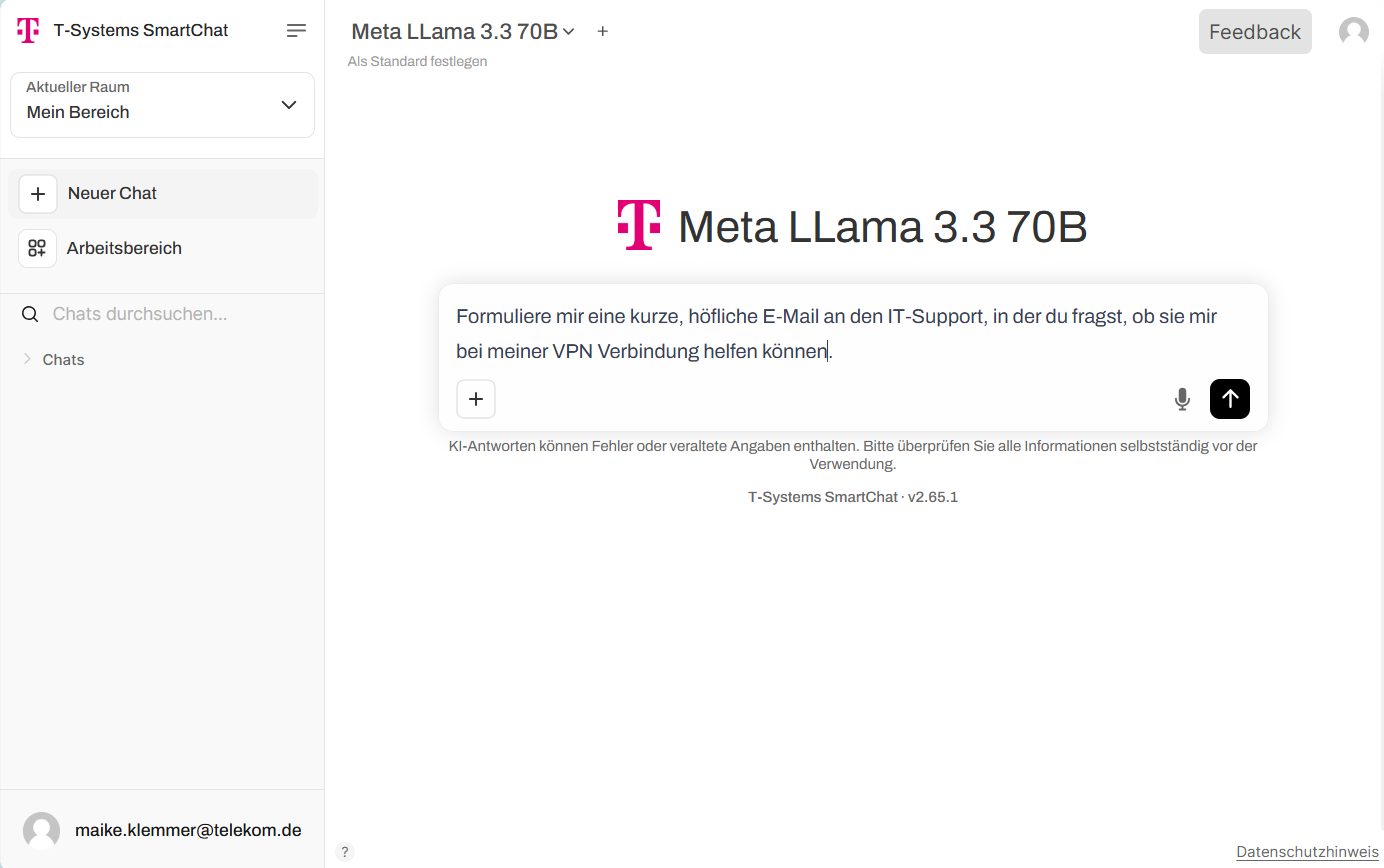
A manual prompt is a directly written input in the chat interface. Type your query or instruction in the dialog window and send it using the arrow button or the Enter key.
Editing a prompt
Section titled “Editing a prompt”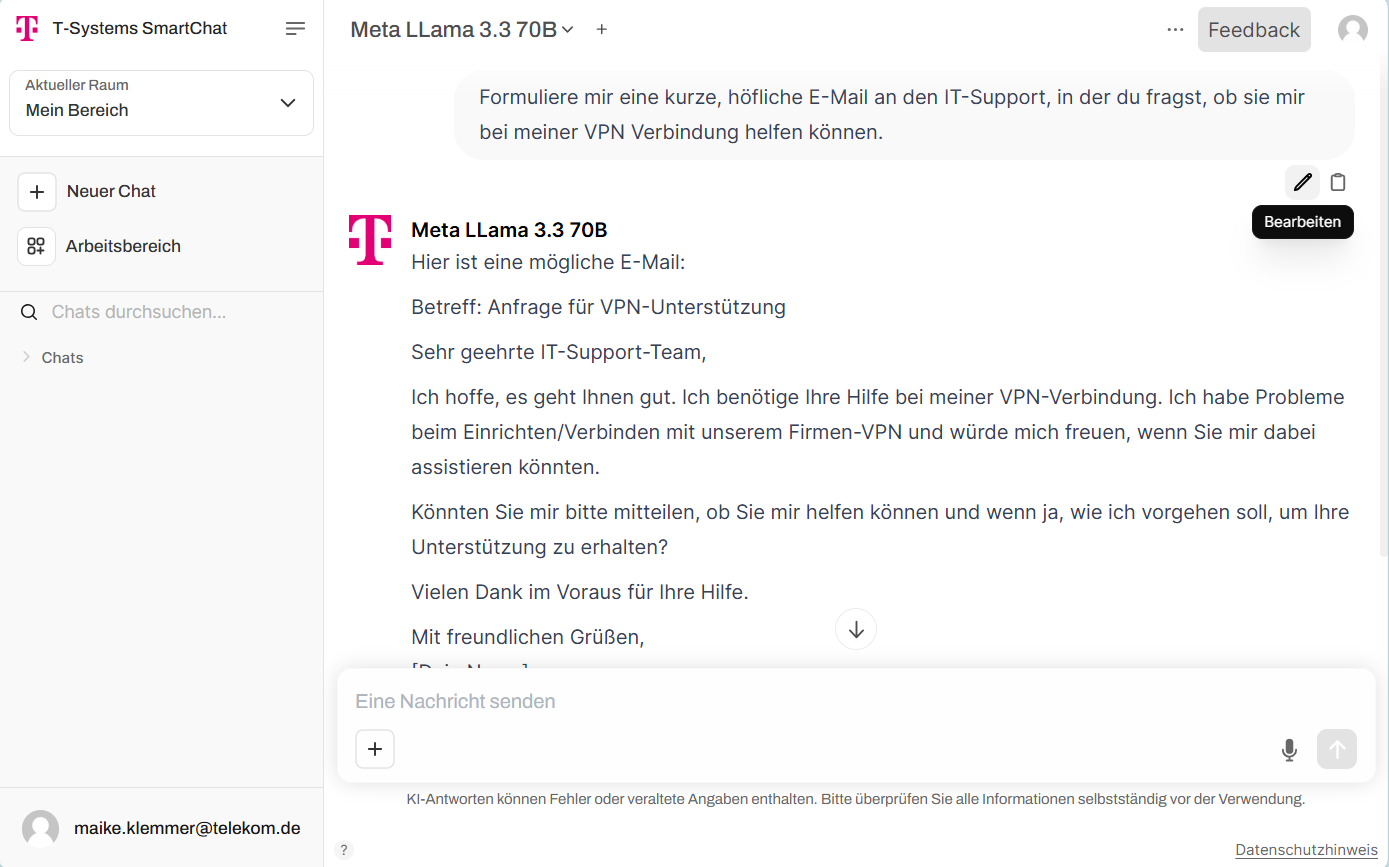
A prompt can be edited using the pencil icon. The response will be regenerated for the updated prompt. After editing, click “Send” to regenerate.
Speech to text
Section titled “Speech to text”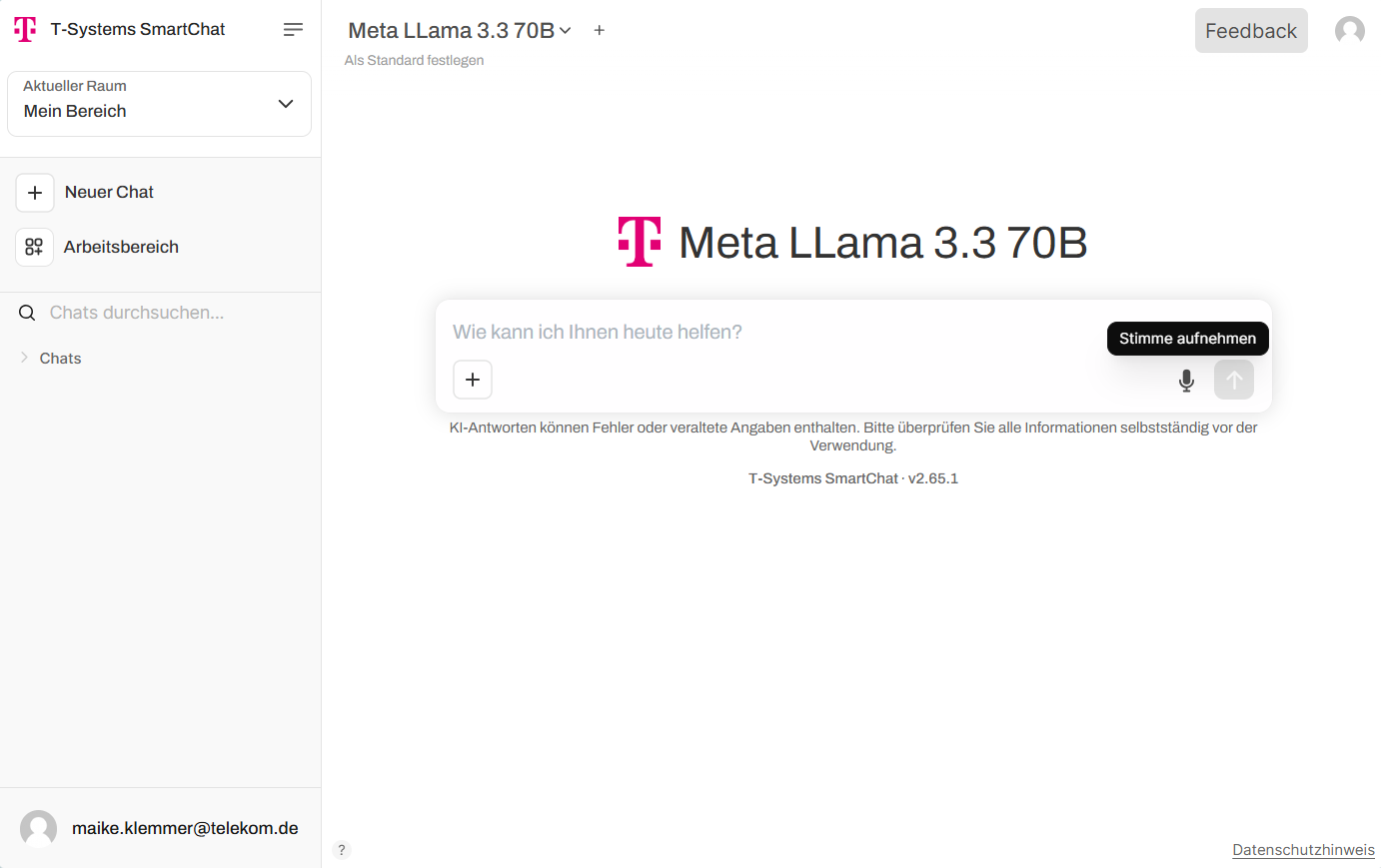
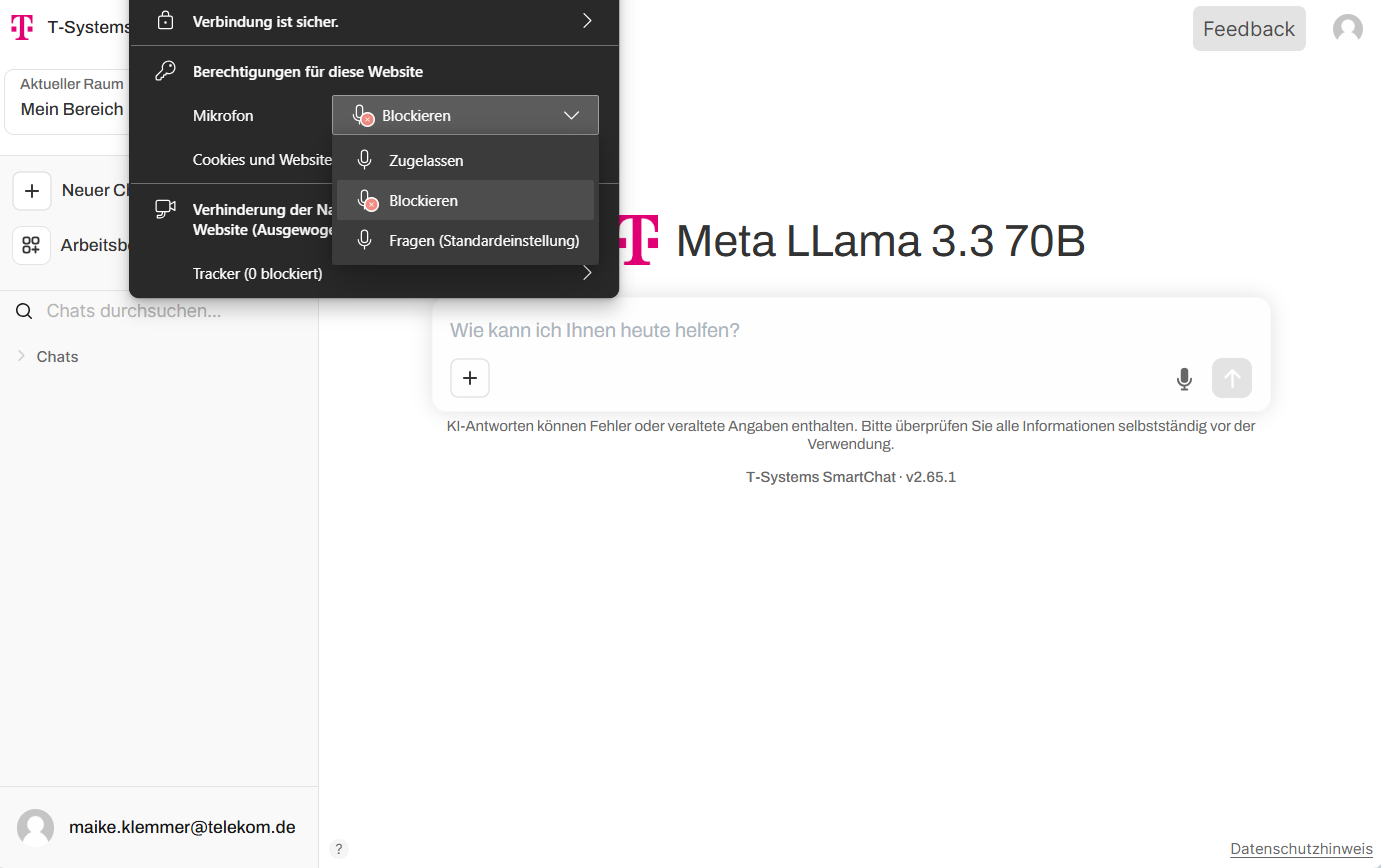
Use the microphone to dictate a prompt, which is then converted to text. Your browser must have microphone access permission for this feature to work.
Uploading files and screen captures
Section titled “Uploading files and screen captures”Uploading files allows you to interact directly with your own documents. This creates a private chat session between you, Smartchat, and the uploaded documents. This feature is only available in “My Space” and cannot be combined with RAG knowledge in provided spaces. Uploaded documents are not stored outside the chat.
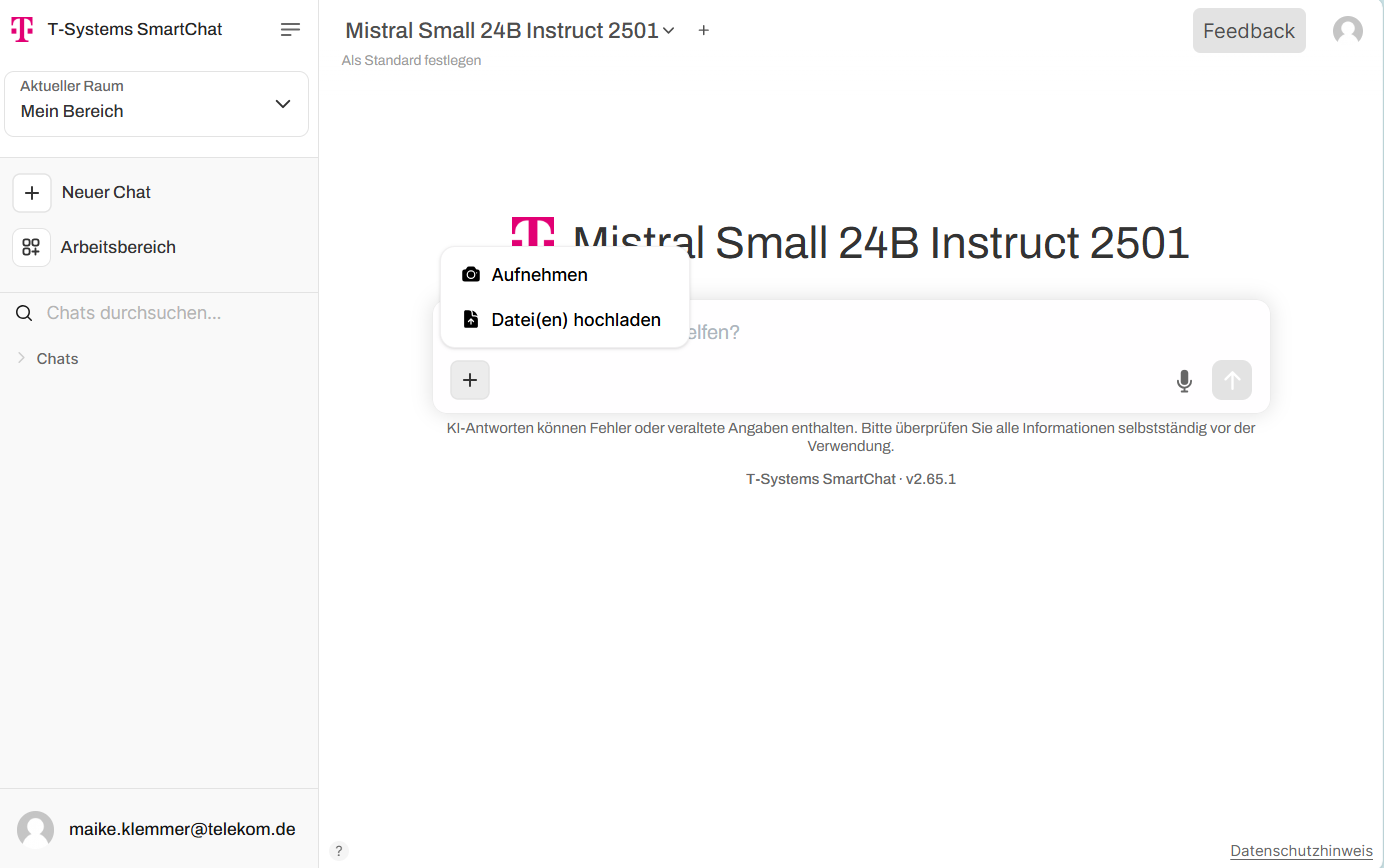
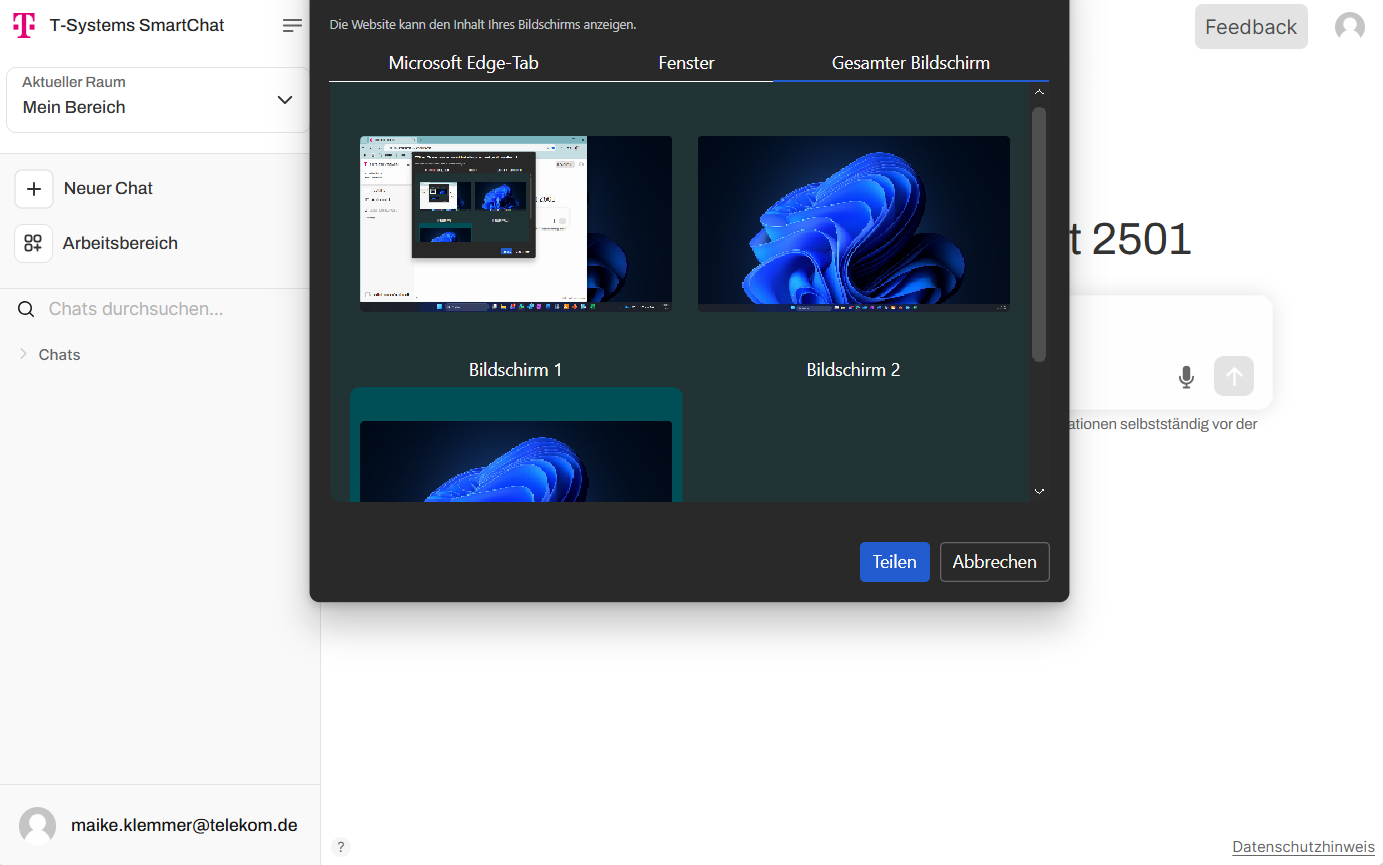
Use the plus icon in the chat window to upload files from your file manager or take screenshots of open applications. Files can also be dragged and dropped into a chat.