Managing & Organizing Chats
Searching chat histories
Section titled “Searching chat histories”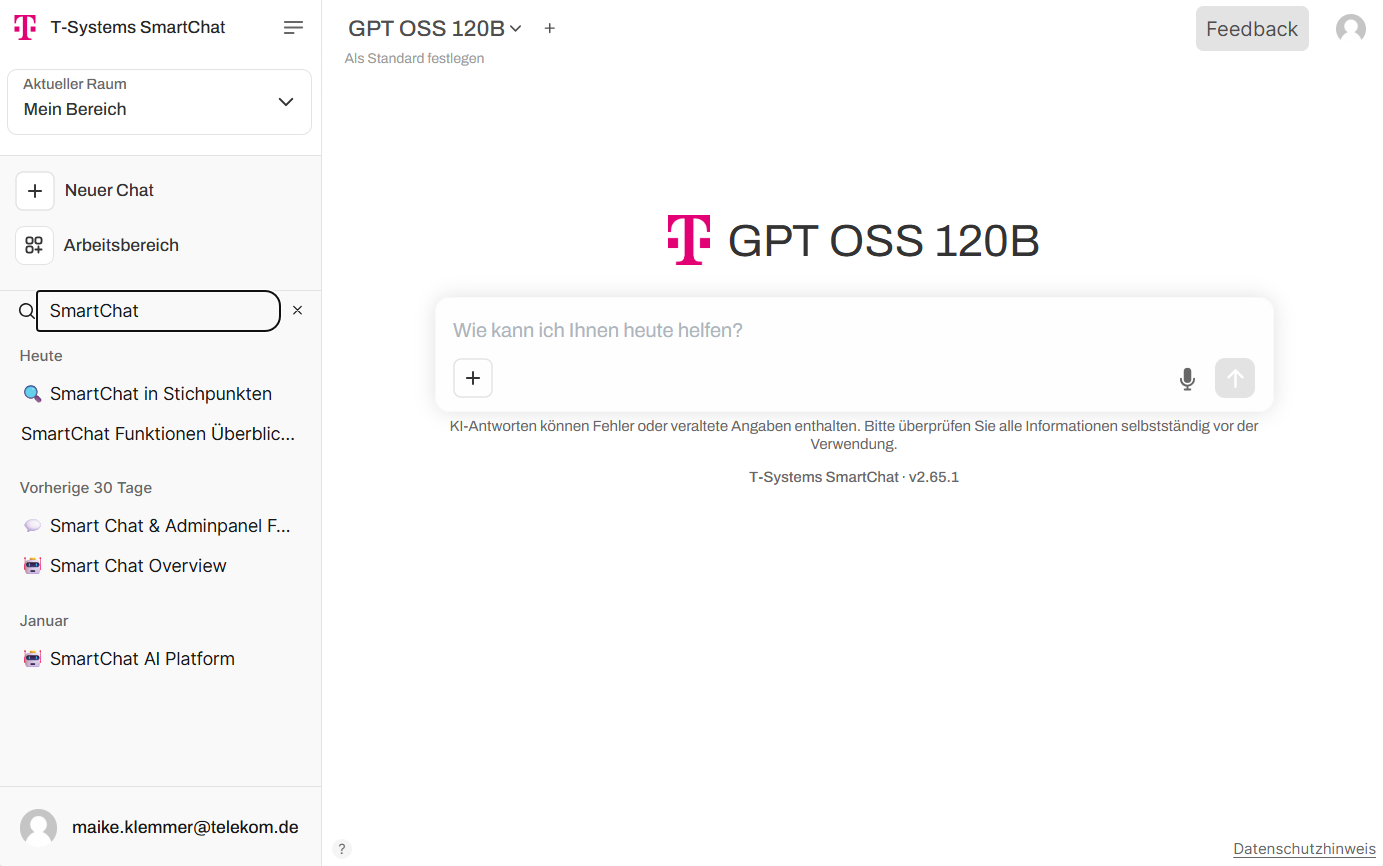
Use the search bar on the left side to search content from past chats and find old entries.
Organizing chats in folders
Section titled “Organizing chats in folders”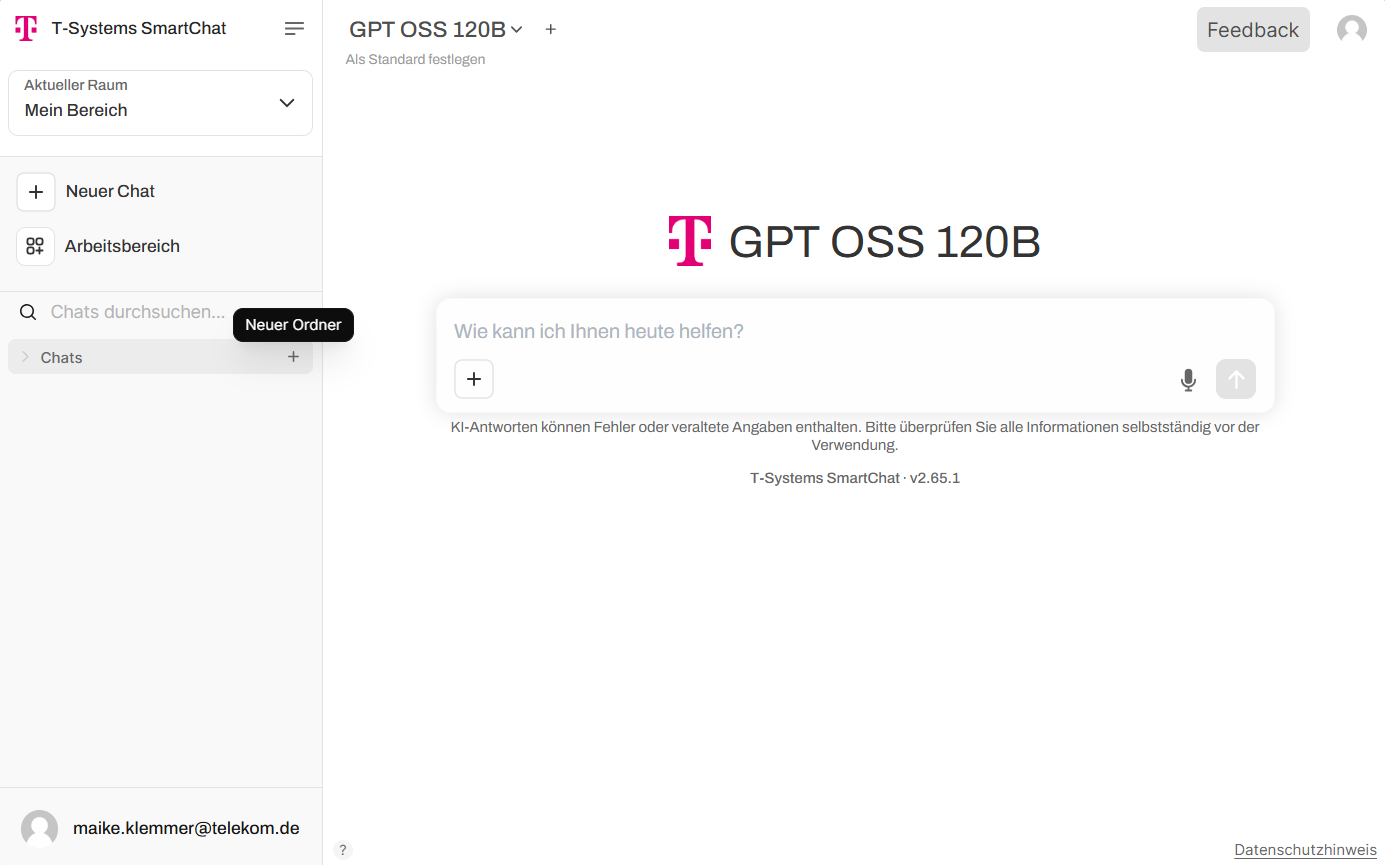
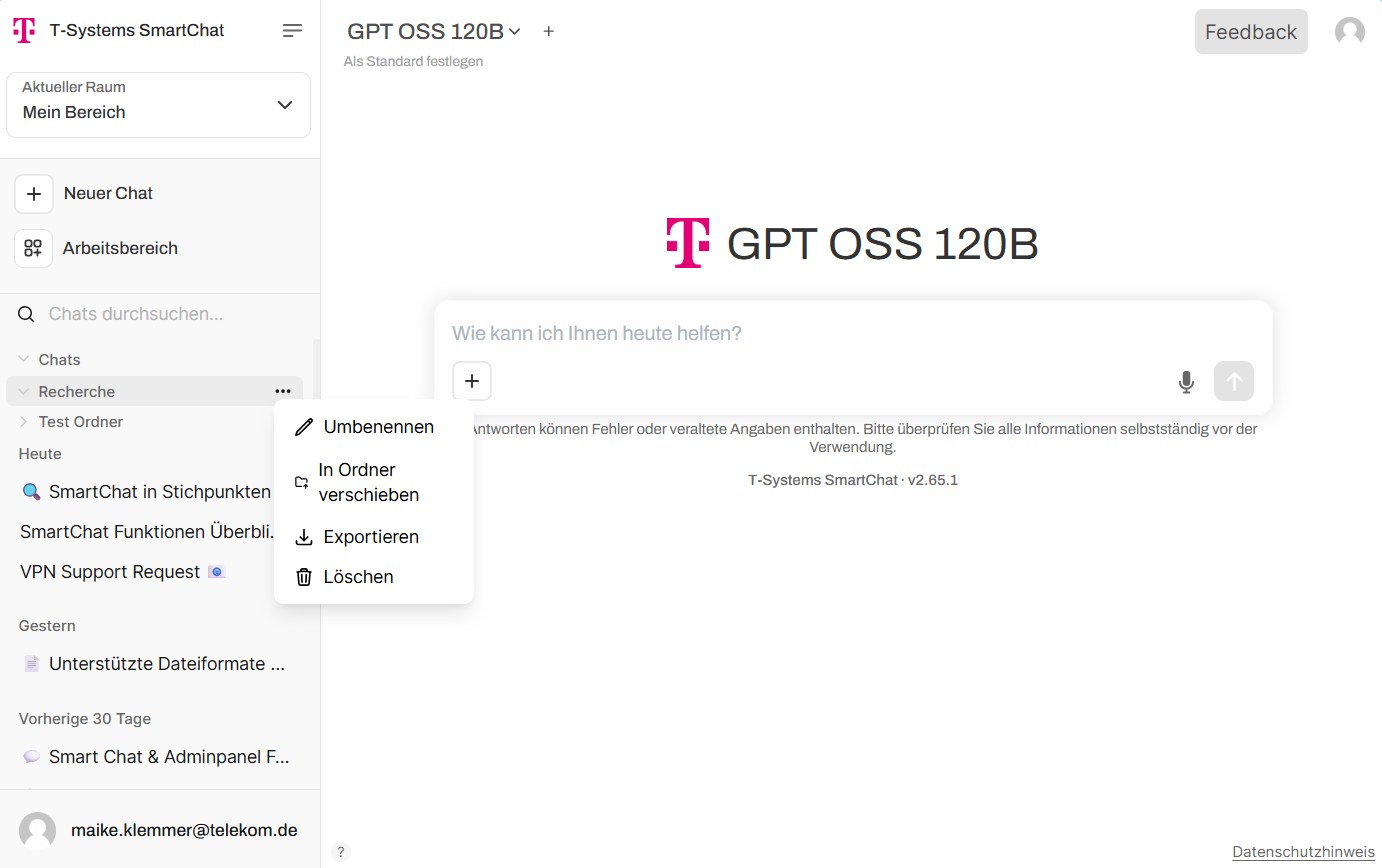
Use the plus button in the chat overview to create folders for organizing and grouping chats. The three-dot menu lets you rename folders. Existing chats can be moved into folders via drag & drop.
Pinning, renaming, and managing chats
Section titled “Pinning, renaming, and managing chats”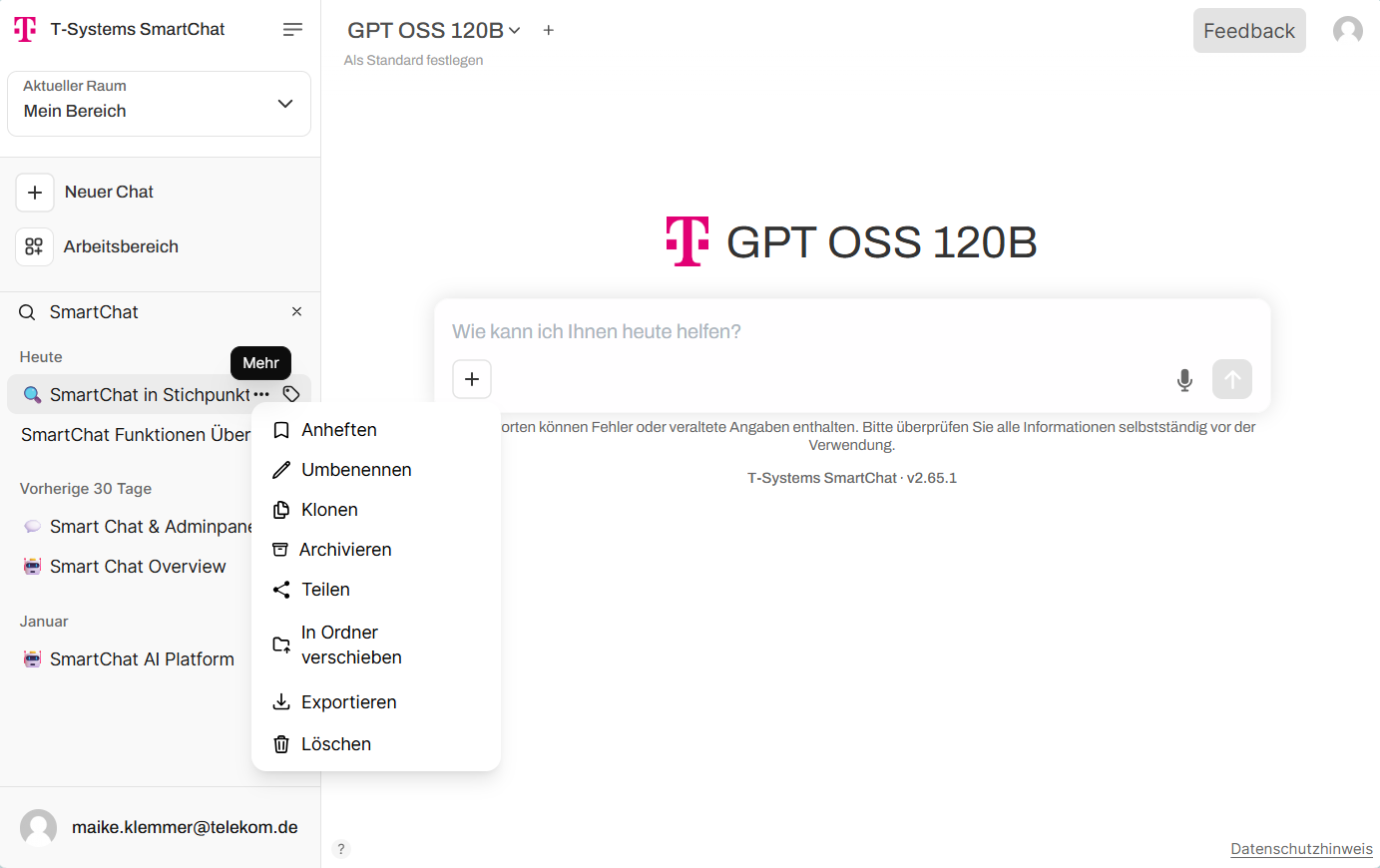
Click the three-dot icon next to a chat to access the following actions:
- Pin — Pin the chat to the top of the list.
- Rename — Change the chat title.
- Clone — Create a copy of an existing chat.
- Archive — Remove from the overview without deleting. Can be unarchived later.
- Share — Create a shareable link. Recipients can view and clone the chat, but not collaboratively edit it.
- Move to folder
- Download — Download the chat in various formats.
- Delete — Permanently remove the chat from the history (not recoverable).
Use the tag icon next to the three-dot menu to add tags (keywords) to chats for more efficient grouping across folders. You can also search for tags in the chat search bar.
Unarchiving chats
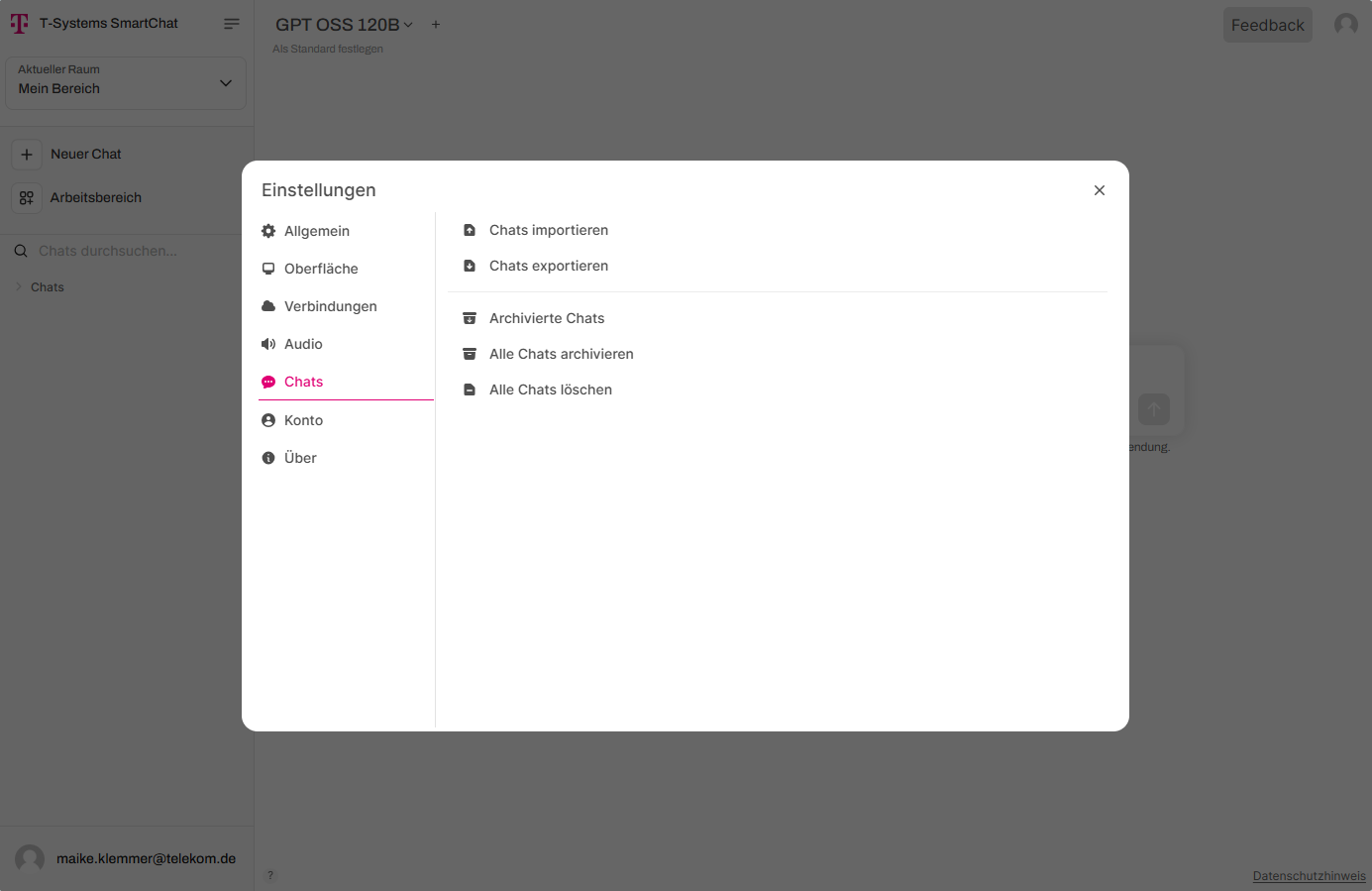
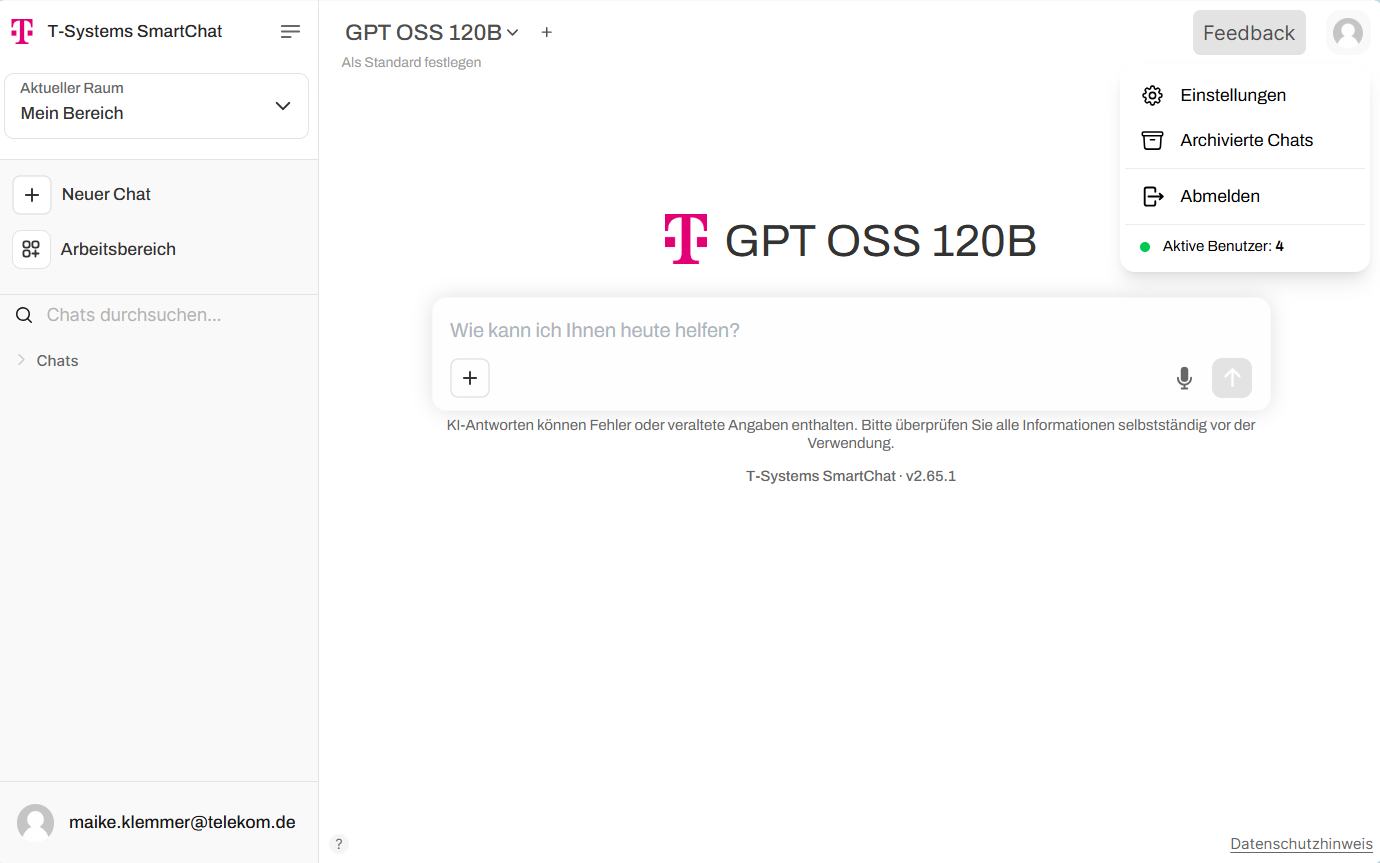
Section titled “Unarchiving chats”Archived chats are no longer displayed in the chat overview. They can be restored via the profile icon.
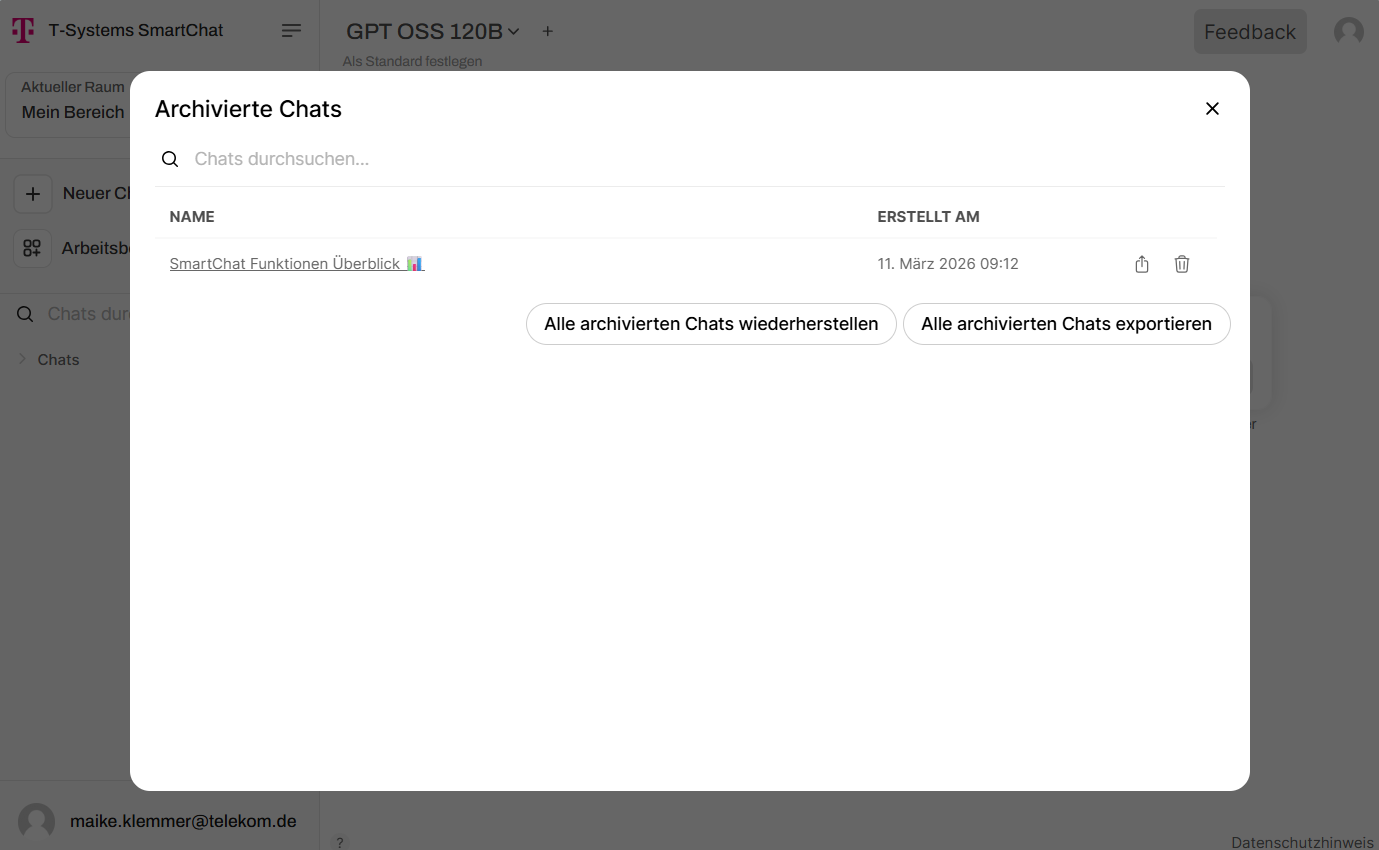
In this view, all archived chats can be restored individually (or all at once) or deleted. Archived chats can also be exported as a JSON file.
Importing chats
Section titled “Importing chats”Go to Settings under the profile icon and navigate to the “Chats” section.
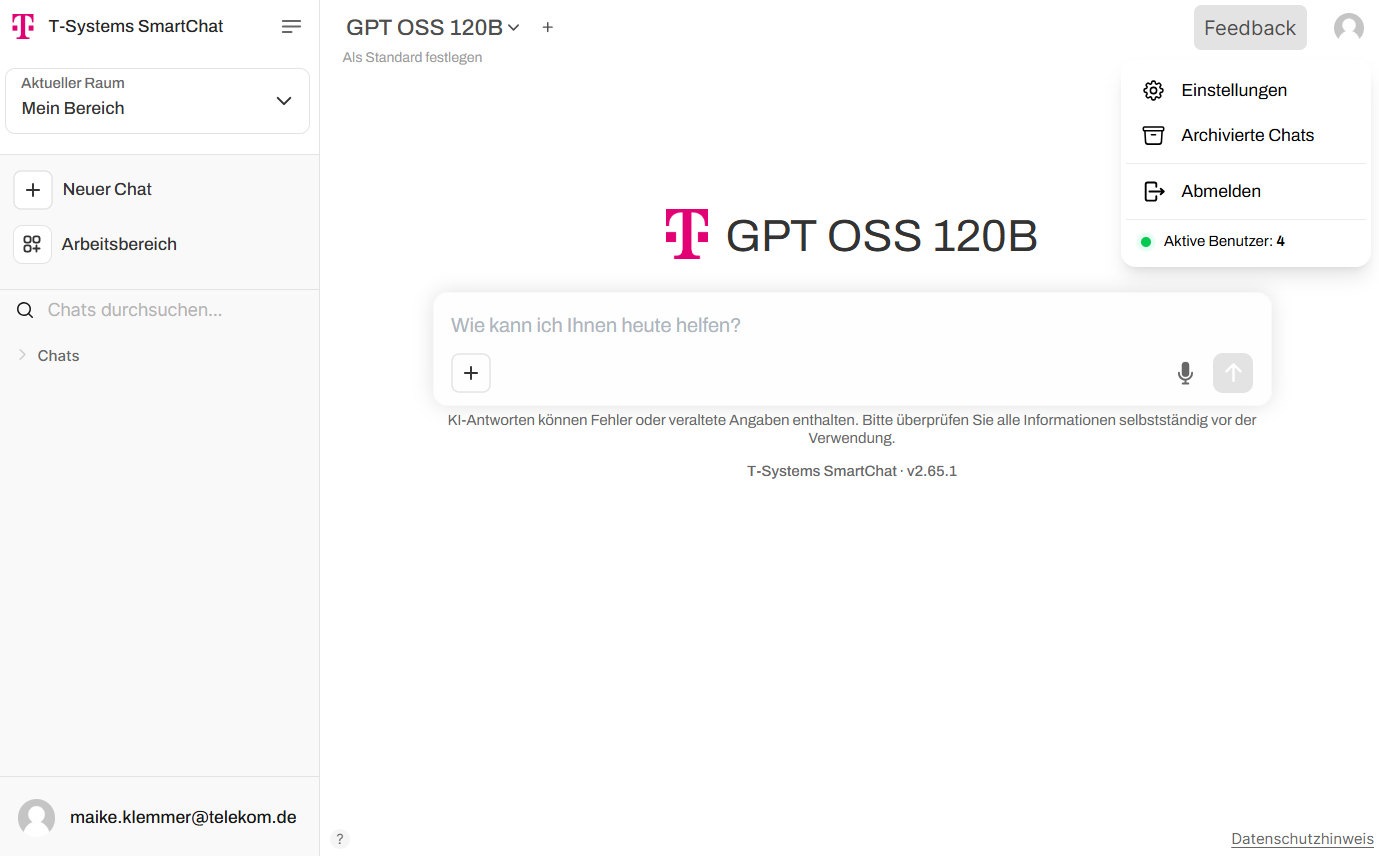
Here you can import chats in JSON format.