
Confluence Sync
This guide explains how to set up a connection between your Smartchat space and a Confluence Data Center instance. Once connected, Smartchat automatically syncs the Confluence pages so they become searchable and available as context for your conversations.
Prerequisites
Section titled “Prerequisites”- You need the Space Owner role in the Smartchat space. See Admin Panel Roles for details.
- A service account token or personal access token (PAT) from the Confluence server you want to sync. Ask your Confluence administrator if you are unsure how to obtain one.
Step 1 — Open the Admin Panel
Section titled “Step 1 — Open the Admin Panel”Go to the Smartchat Admin Panel and select the space you want to configure using the space selector dropdown in the top right.
Step 2 — Navigate to Data Connections
Section titled “Step 2 — Navigate to Data Connections”In the left sidebar under Manage, click Data Connections. You will see a table listing all existing connections for this space (initially empty).

Step 3 — Create a new connection
Section titled “Step 3 — Create a new connection”
Click the + Create connection button in the top right corner. A form will appear with the following fields:

Fill in the fields as follows:
| Field | Description |
|---|---|
| Connection Type | Select Confluence. |
| Name | A name for your connection (no spaces or special characters allowed). |
| URL | The base URL of your Confluence instance, e.g. https://strive.devops.t-systems.net/confluence/ |
| Key | The Confluence space key to sync. This is the short prefix that appears in Confluence URLs. For example, if your pages have URLs like https://strive.devops.t-systems.net/confluence/spaces/AIFS/pages/..., the space key is AIFS. |
| Credential Type | Select Basic Auth. |
| Credential Authorization | Select Read. |
| Username | The username of the service account or personal account. |
| Secret | The corresponding password or access token. |
Click Save when you are done.
Step 4 — Accept the data privacy disclaimer
Section titled “Step 4 — Accept the data privacy disclaimer”A disclaimer dialog will appear reminding you that all content visible to the provided Confluence user will be ingested into the Smartchat space and become accessible to all space members.

Read the message carefully. Only click Continue if you are authorized to share all of the Confluence content with everyone in the Smartchat space.
Step 5 — Verify the connection
Section titled “Step 5 — Verify the connection”After accepting the disclaimer, the connection appears in the Data Connections table. If the credentials and URL are correct, you will see a green WORKS badge in the Test Result column.

Synchronization schedule
Section titled “Synchronization schedule”- The Next Sync column shows when the next sync is scheduled. Sync always runs automatically at 00:00 (midnight) every day.
- The initial sync imports all pages and may take anywhere from a few minutes to several hours, depending on the volume of content.
- Subsequent syncs only process updates and are typically much faster.
Managing connections
Section titled “Managing connections”Each connection has a set of action buttons on the right side of the table:

| Button | Action |
|---|---|
| Plug icon | Test the connection — verifies that the credentials and URL are still valid. |
| Play icon | Sync now — triggers an immediate sync. This is useful if the next scheduled sync is too far away and you want fresh data sooner. Under normal circumstances, the automatic daily sync is sufficient. |
| Pen icon | Edit the connection — modify the name, URL, credentials, or other settings. |
| Trash icon | Remove the connection — deletes the connection configuration. Note that removing a connection does not delete the data that was already synced. |
How to access the data
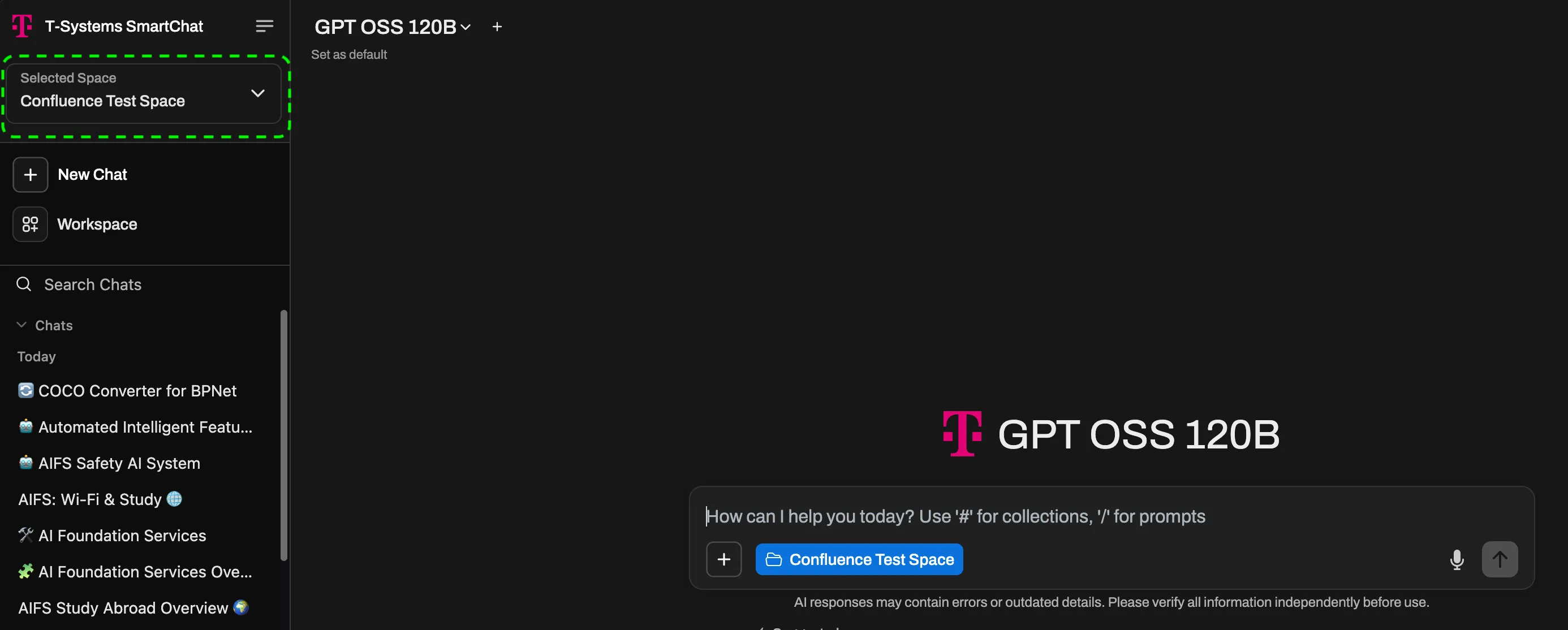
Section titled “How to access the data”Once the sync has completed, the Confluence content is available in the Smartchat chat interface.
Select the corresponding space from the Space Selector in the top left and start typing. The synced Confluence data will automatically be loaded as context.
Troubleshooting
Section titled “Troubleshooting”The connection test displays one of the following status codes:
| Status | Meaning |
|---|---|
| Works | Connection is healthy. |
| Connection Error | Smartchat cannot reach the server (timeout, DNS failure, connection refused). |
| Missing Credentials | No username or secret was provided. |
| Auth Failed | The credentials were rejected (wrong username/password or expired token). |
| HTTP 400 | The request is malformed (usually a wrong URL path or missing parameters). |
| HTTP 404 | The URL or Space Key was not found on the server. |
| HTTP 4xx | Another client-side error (e.g. 403 Forbidden, 429 Rate Limited). |
| HTTP 500 | Internal server error on the Confluence side. |
| HTTP 5xx | Another server-side error on the Confluence side. |
| HTTP Error | An unclassified HTTP error. |
| Failed | An unexpected error occurred. |
Connection Error
Section titled “Connection Error”Cause: The Confluence server is unreachable. The URL may be wrong, the server may be down, or there is a network/firewall issue.
Fix: Verify the correct Confluence base URL. Data Center instances typically use a path like https://your-server.example.com/confluence/. Make sure you are using the API base URL, not the URL you see in the browser when browsing pages.
Auth Failed
Section titled “Auth Failed”Cause: The username or password is wrong, or the API token has expired or been revoked.
Fix: Re-generate the API token in your Confluence account settings and verify that the username matches the token owner.
HTTP 404
Section titled “HTTP 404”Cause: Either the base URL path is incorrect (e.g. with or without /wiki), or the Space Key is wrong. The display name may have been used instead of the Space Key, or there is a typo. Space Keys are case-sensitive.
Fix: Check the URL path first. Then look up the correct Space Key in Confluence under Settings → Space details.
Setup succeeds but ingestion or chat fails
Section titled “Setup succeeds but ingestion or chat fails”Cause: The Smartchat space configuration is incomplete (no API key or default model set). Alternatively, Confluence may be throttling the API with a 429 response due to too many pages being requested at once.
Fix: Ensure the Smartchat space has a valid API key, embedding model, and default LLM configured before setting up Confluence sync. If you are being rate-limited, reduce the batch size or check with your Confluence administrator for rate limit settings. You can monitor ingestion status in the Context Files panel of the space.
Some or all pages missing after ingestion
Section titled “Some or all pages missing after ingestion”Cause: The API token owner lacks access to the Confluence space, or individual pages have restricted permissions that exclude the token owner.
Fix: Ensure the token owner has read access to the target Confluence space and all pages within it. Check with your Confluence administrator if page-level restrictions are in place.